Updating a Patient's Nominated Pharmacy
A patient may request to change the nominated recipient of their electronic prescriptions. This can be an update from your pharmacy to another, another pharmacy to your pharmacy or to remove a nominated pharmacy.
Updating a Nominated Pharmacy from the eMessages screen
To access the Patient Nomination Wizard:
-
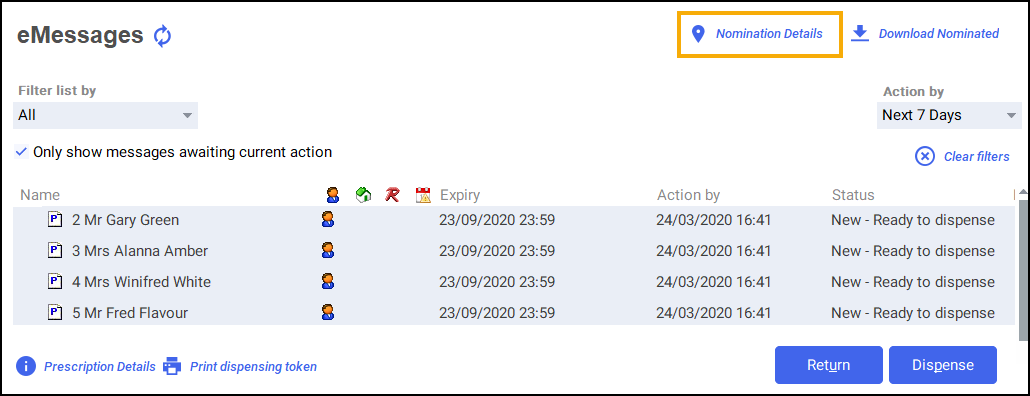
From the eMessages screen, you can either:
-
Press F3 on your keyboard, or
-
Select Nomination Details
 .
.
-
- The Patient Nomination Wizard - Find Patient screen displays.
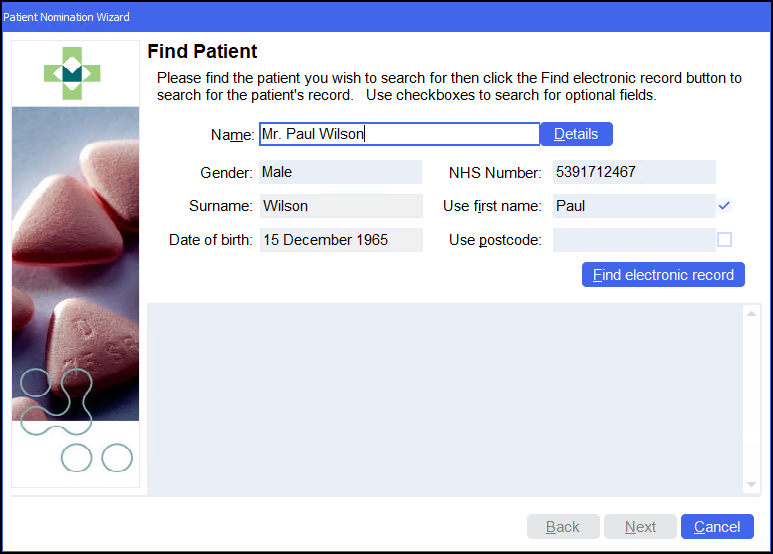
Enter the name of the patient and press Enter on your keyboard to search for the patient record in Pharmacy Manager.
-
The Find Patient screen displays, select the patient from the list or if the patient can not be found, a local patient record can be created, see Adding a New Patient for details.
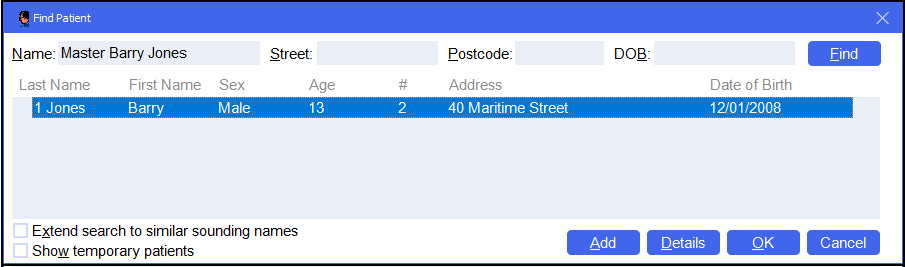
Select OK
 to display the patient's details on the Patient Nomination Wizard - Find Patient screen.
 - Select Find electronic record
 to search for the patient on the Personal Demographics Service (PDS).
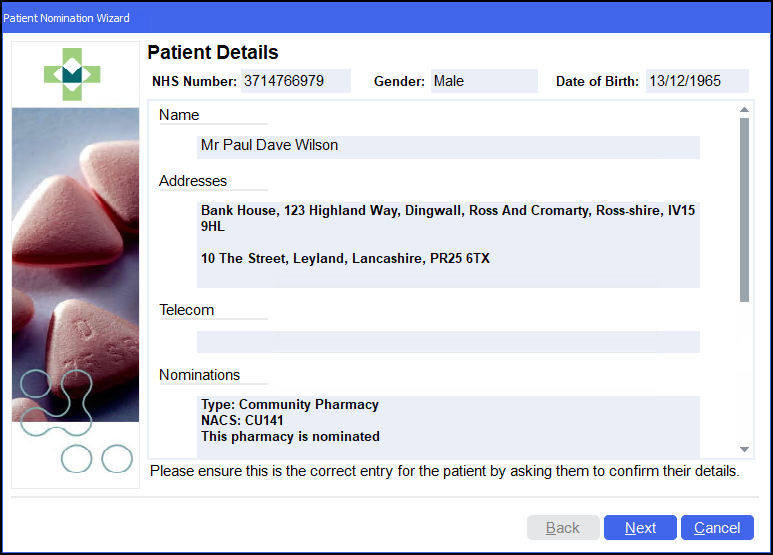
 - The Patient Nomination Wizard - Patient Details screen displays, confirm the details with the patient and then select Next
 .
. .
. - The Patient Nomination Wizard - Confirm Patient Details screen displays.
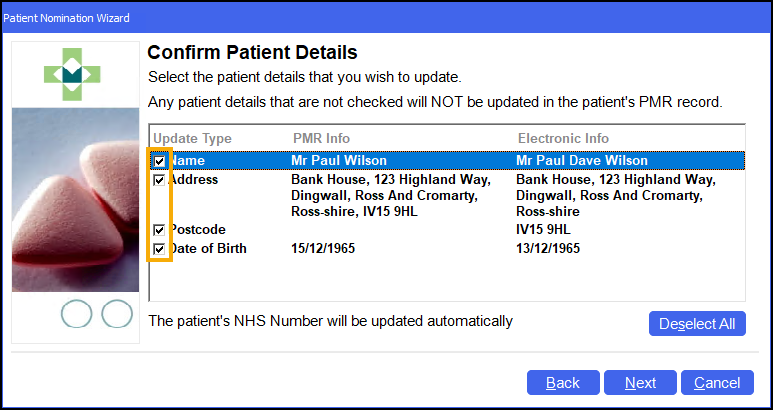
Select the tick boxes to update the information from the electronic patient record to the local record in Pharmacy Manager.
Note - You cannot update PDS with your patient's local record, you can only receive updates to your local record from PDS. -
Select Next
to display the Patient Nomination Wizard - Patient Nominations screen. From here you can edit the patient's nominations.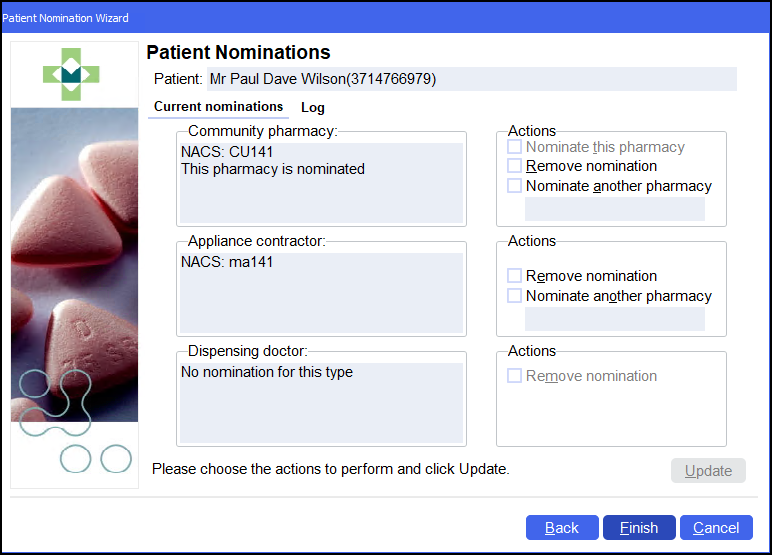
Nominating This Pharmacy
To nominate your own pharmacy:
-
From the Patient Nomination Wizard - Patient Nominations screen, select Nominate this pharmacy.
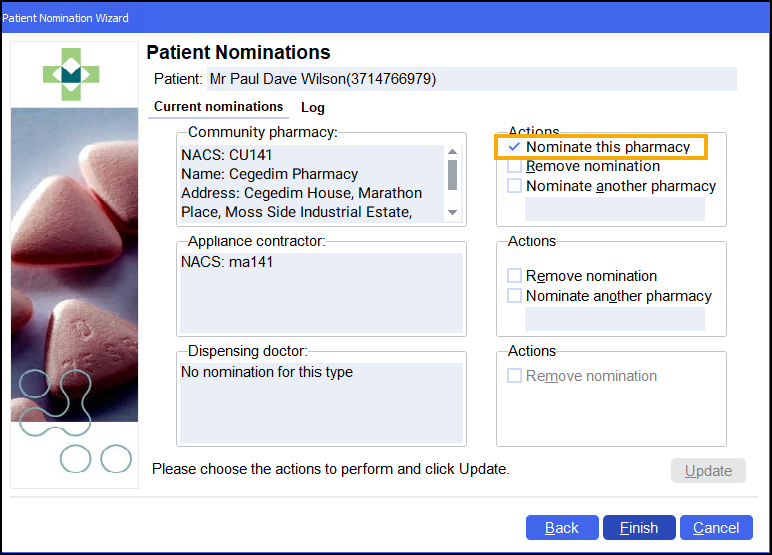
- Select Update
 . Select Finish
  .
.
Nominating a Different Pharmacy
To nominate a different pharmacy:
-
From the Patient Nomination Wizard - Patient Nominations screen, select Nominate another pharmacy.
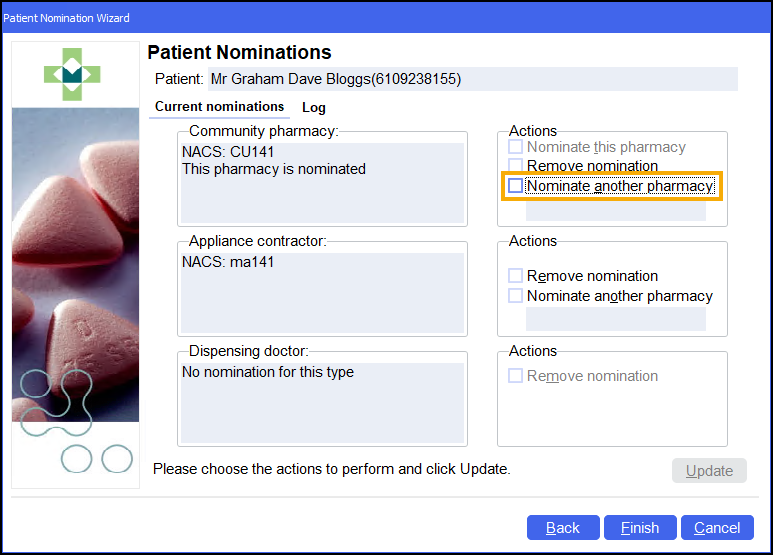
-
The Find pharmacy to nominate screen displays.
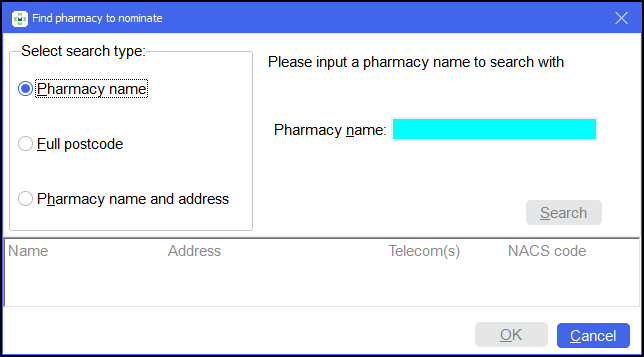
Set your search criteria from the following options:
-
Pharmacy name
-
Full postcode
Note - Wales Electronic Prescription Service (EPS) users cannot currently search by postcode. -
Pharmacy name and address
-
-
Select Search
 . A list displays pharmacies that match your search criteria, select the pharmacy required and then select OK .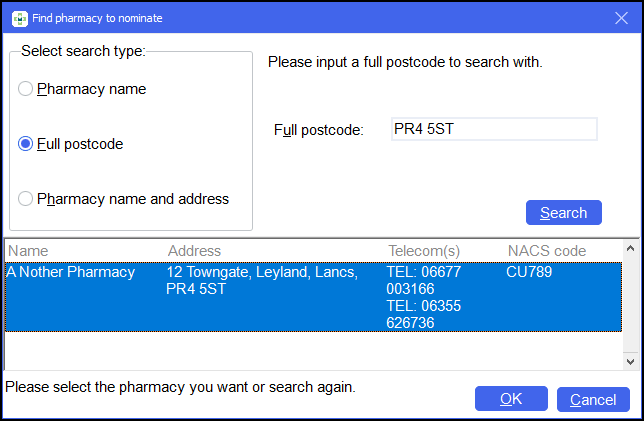
-
The Patient Nominations screen updates with the selected pharmacy.
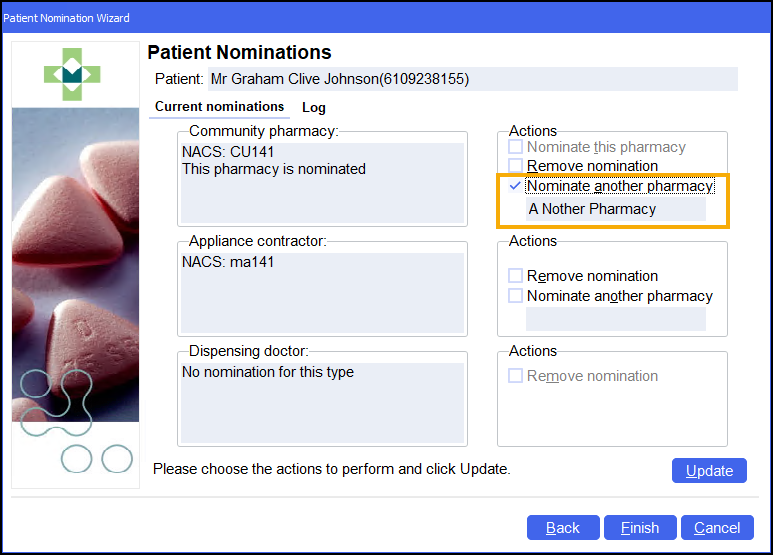
Select Update
. Select Finish .
Removing a Nomination
To remove a pharmacy nomination:
-
From the Patient Nomination Wizard - Patient Nominations screen, select Remove nomination.

- Select Update . Select Finish .
 in the top right corner and follow the on-screen prompts.