Searching for, Sorting and Filtering In Progress Prescriptions (England)
Accuracy Checking Module - New In Progress Screen (2:55)
To help manage your workload you can search for or filter the prescriptions in progress, for example, to display prescriptions that are accuracy checked but require a pharmacist’s sign off.
Searching for a Patient's Prescription
To search for a prescription in progress:
-
From the Prescriptions - In Progress screen, in Search enter a name.
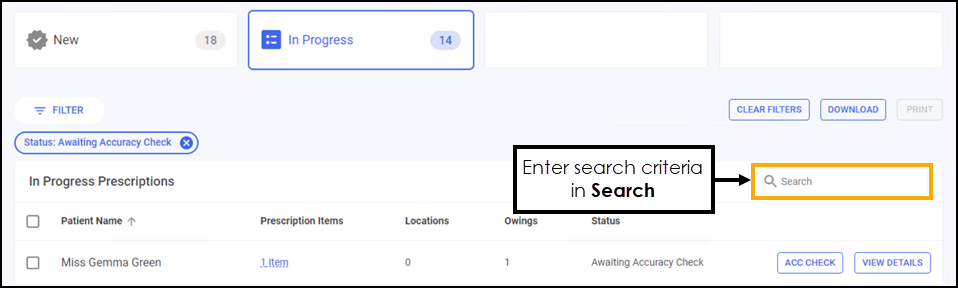
You can search for a patient using the following criteria:
-
Surname only, for example Turner.
-
Partial First Name and Surname with a space, for example Pa Turner.
Training Tip - Partial searches must be the first letters of the name, for example Pa for Paul. -
Partial First Name and partial Surname with a space, for example Pa Turn.
-
Partial First Name, partial Middle Name and partial Surname with a space, for example Pa Gr Turn.
-
Initials with space, for example P T or P G T.
-
Full name with spaces, for example Paul Graham Turner.
Note - You can also search for a patient by their NHS number. -
-
The patient list automatically updates when you start typing. Select Close
 to clear the search.
Sorting Prescriptions
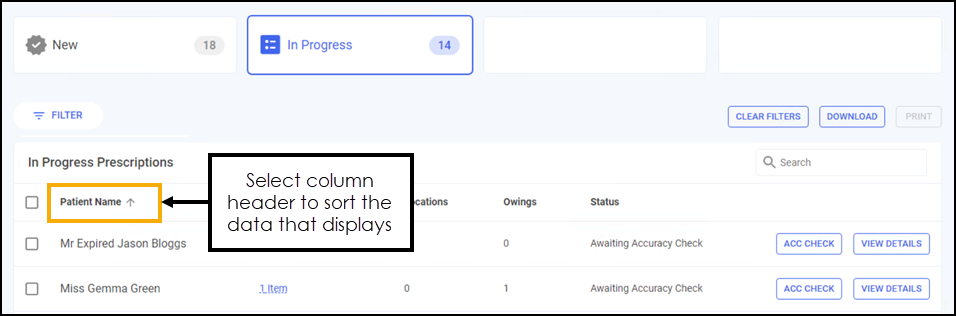
Prescriptions in progress display newest first by default, to manually sort the prescriptions then simply select the column header to sort ascending / A-Z or descending / Z-A.
Filtering Prescriptions
To filter the prescriptions in progress:
-
From the Prescriptions - In Progress screen, select FILTER
 .
.
-
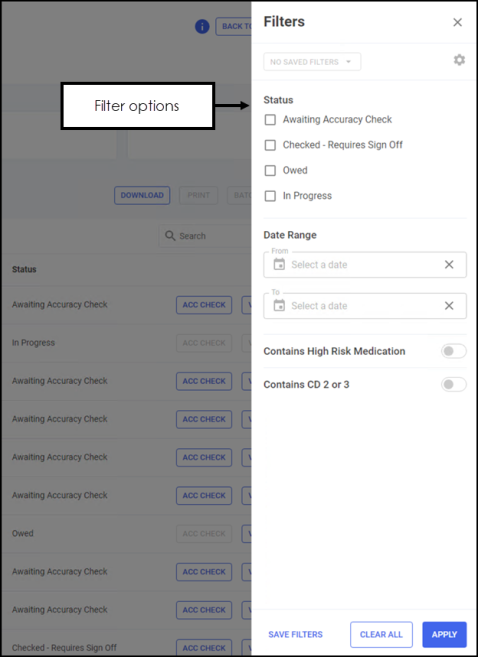
The filter options display on the right-hand side of the screen.
-
Status - Filter by prescription status:
-
Awaiting Accuracy Check
-
Checked - Requires Sign Off
-
Owed
-
In Progress
-
-
Date Range - Select the From and To dates to open a calendar.
-
Contains High Risk Medication - Select to view prescriptions that contain high risk medication.
-
Contains CD 2 or 3 - Select to view prescriptions that contain CD 2 or 3 medication.
Note - You can select multiple filters. -
-
Select APPLY
 to set the filters or CLEAR ALL
  to clear the filters and display all prescriptions.
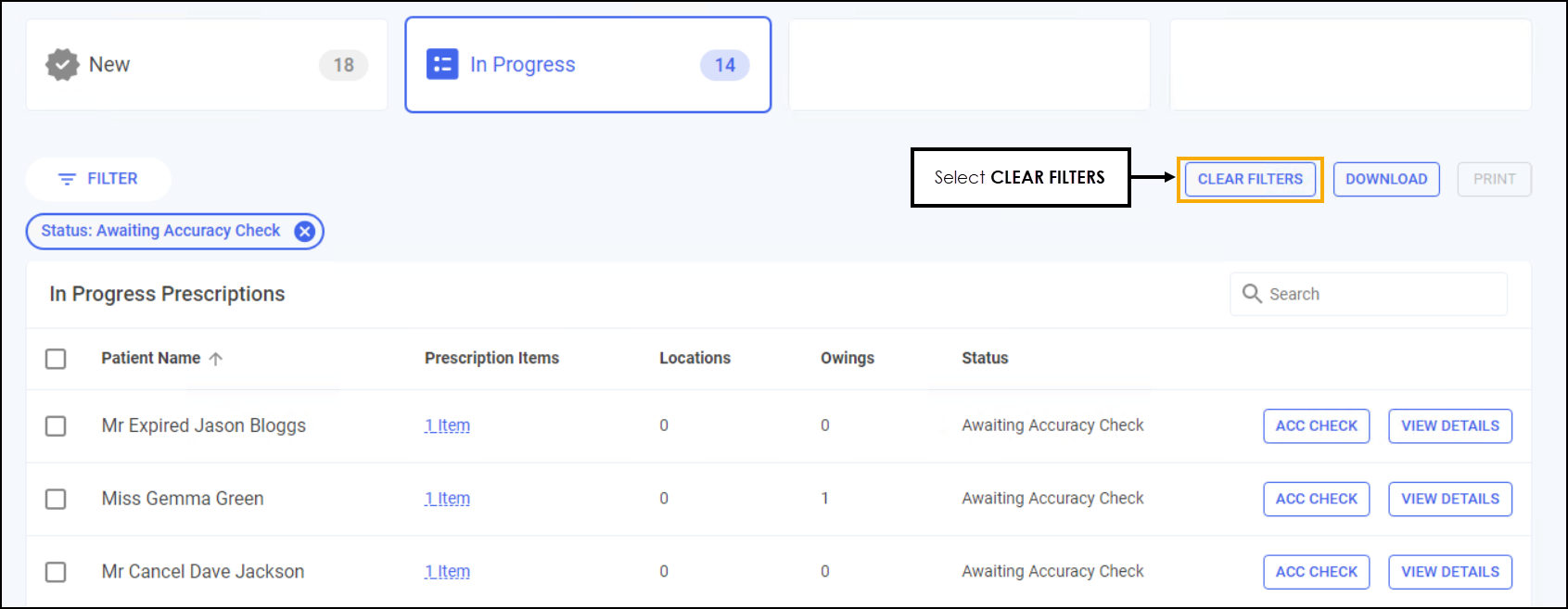
The filter criteria displays below FILTER
, select the filter criteria to remove it.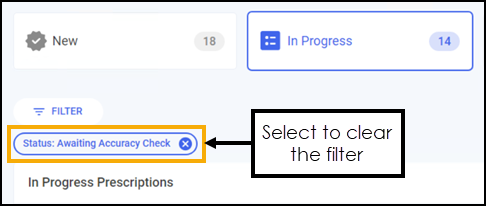
To clear all set filters, simply select CLEAR FILTERS  .
.
 in the top right corner and follow the on-screen prompts.