Viewing Ready To Claim Prescriptions (England)
The Prescriptions - To Claim screen enables you to quickly identify and manage electronic prescriptions that have been marked as collected and are now ready to claim. You can mark prescriptions as claimed individually or in bulk from the Prescriptions - To Claim screen.
To Claim Headlines
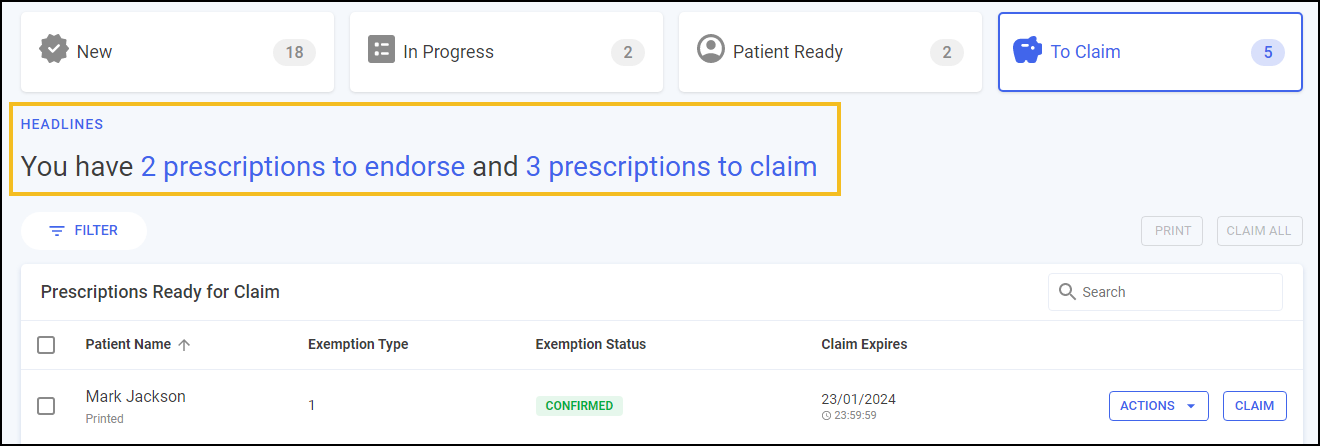
A summary of your prescriptions ready to claim displays at the top of the To Claim screen, for example, how many prescriptions need notifying, endorsing and claiming.
To Claim Prescriptions Table
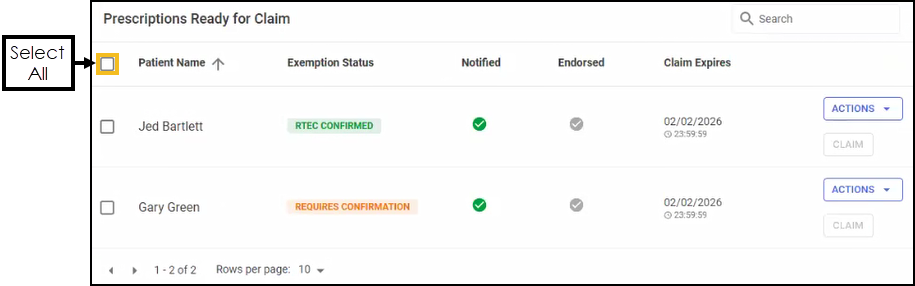
The table displays a list of patients with prescriptions that are ready to claim for and the following details:
-
Select All - Use to select all prescriptions on the screen.
-
Patient Name - Displays the patient's name on the prescription.
-
Exemption Status - Displays either CONFIRMED, RTEC CONFIRMED or REQUIRES CONFIRMATION according to the patient's exemption status.
-
Notified - Displays the Notified status of the prescription.
Training Tip - To change your dispense notify options, see Pharmacy Details - EPS for details. -
Endorsed - Displays the Endorsed status of the prescription.
See Endorsing an Electronic Prescription for details. -
Claim Expires - Displays the expiry date of the prescription.
Claim for an Individual Prescription
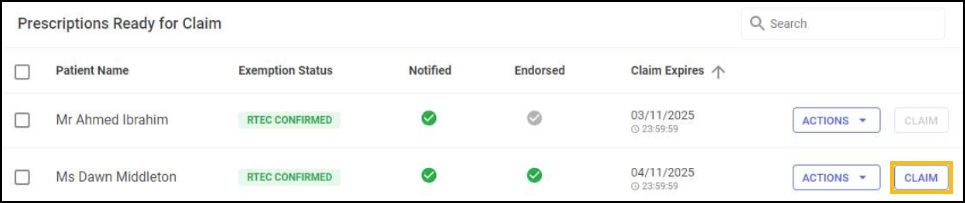
Select CLAIM  to claim reimbursement for a prescription. When marked as Claimed the prescription entry clears from the Prescriptions - To Claim screen.
Individual Prescription Actions
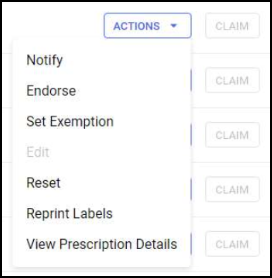
For each individual prescription you have the following options:
-
ACTIONS:
-
Notify - Send a Dispense Notification to the NHS Spine.
-
Endorse - Select to display the Dispensary Supply screen and add endorsements to prescription items.
-
Edit - Select to edit the individual prescription. The Dispensary screen displays, edit the prescription as required and then select Finish
 .Note - Pharmacies using Accuracy Check and Handout Manager cannot edit prescriptions and are advised to reset the prescription instead.
 -
Reset - Select to reset the individual prescription to a status of New - Ready to dispense.
-
Reprint Labels - Select to reprint the labels for the prescription.
-
View Prescription Details - Select to view the Dispensed Items section of the prescription on the eMessage Details screen
-
Prescription Options
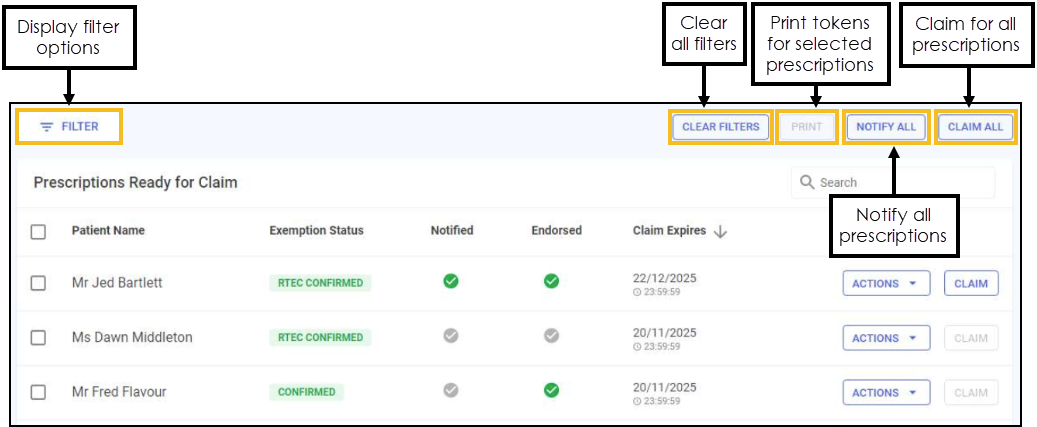
The following options are available from the top of the prescriptions table:
-
FILTER - Select to display the filters available.
-
PRINT - Select to print the dispensing tokens for the prescriptions selected.
Note - This option is only available when a prescription is selected. -
NOTIFY ALL - Select to send a Dispense Notification for all the eligible prescriptions in the To Claim list.
Note - Dispense Notifications are sent for all prescriptions in the To Claim section with a status of ready to notify, not just those that display on the screen. -
CLAIM ALL - Select to claim reimbursement for all of the eligible prescriptions in the To Claim list.
Note - Reimbursement claims are sent for all prescriptions in the To Claim section with a status of ready to claim, not just those that display on the screen.
You can easily search, sort and filter the prescriptions on the Prescriptions - To Claim screen.
 in the top right corner and follow the on-screen prompts.