Amending a Claimed Prescription
A submitted claim can be amended providing the claim is in the same claim reimbursement window.
To amend a claim:
- From the select eMessages
 . The eMessages screen displays.
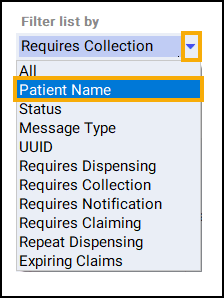
 - Select the Patient Name filter:
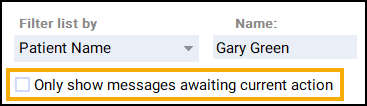
- Enter the Name of the patient and remove the tick from the Only show messages awaiting current action checkbox:
- Select the appropriate prescription and either:
 Edit the prescription
To edit the prescription:
- Select Edit
 :
:
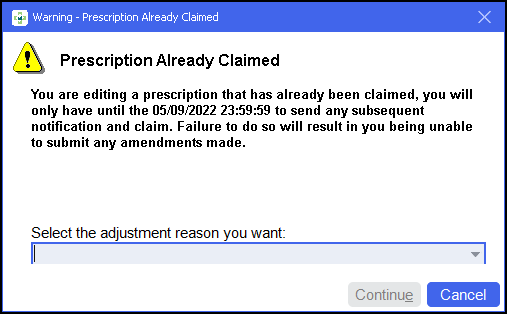
- The Warning - Prescription Already Claimed screen displays, select the appropriate adjustment reason from Select the adjustment reason you want and then select Continue
 :
:
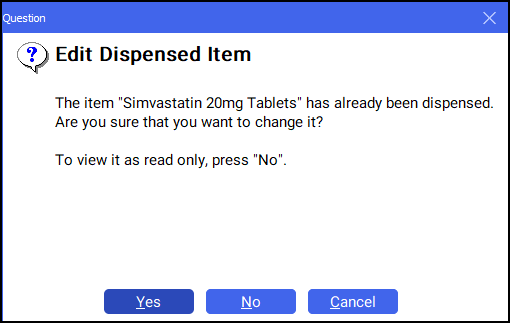
- The Edit Dispensed Item screen displays, select Yes
 :
:
- The Dispensary screen displays with the prescription details, edit the prescription accordingly and then select Finish
 .
. Endorse the prescription in the usual way.
- The prescription displays with the status of Update in progress - Ready to Notify, select to highlight the prescription again. Select Notify
 to send the amended claim to the payment authority:
The prescription displays with a status of Claim complete.
Edit the endorsementTo edit the endorsement only:
Select Endorse
 :
:
The Dispensary Supply screen displays, edit the endorsement as required and select OK
 .See Endorsing an Electronic Prescription for details.
A warning displays detailing the deadline date for claim amendment submission:
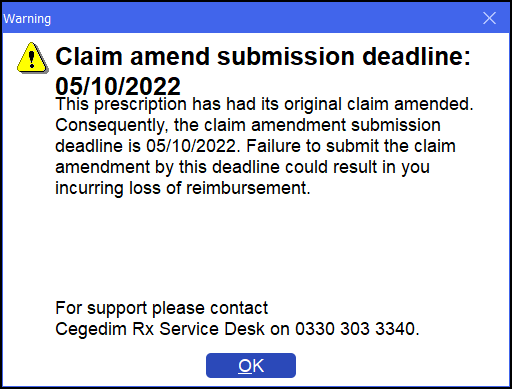
Select OK
.The prescription displays with a status of Ready to claim, select to highlight the prescription and then select Claim
 :
:
The prescription displays with a status of Claim complete.
- Select Edit
Amending a Claimed Prescription (1:18)

