Accessing the Electronic Prescription Service
 For systems configured for EPSR2, each
user will be issued with an NHS smartcard with which
they will use to log in to EPS. Furthermore, Information
Governance provides an additional mandatory mode of operation for
all sites in England that are configured for EPSR2. Each user will be
required to log in to Pharmacy Manager with a user ID and password as
and when they use the system. For convenience, it is possible to link
the smartcard with the Pharmacy Manager user account so that the EPS smartcard
becomes a "single sign on tool". That way, you can log into
both Pharmacy Manager and the NHS Spine in one action - without the need to
enter your security credentials for each service.
For systems configured for EPSR2, each
user will be issued with an NHS smartcard with which
they will use to log in to EPS. Furthermore, Information
Governance provides an additional mandatory mode of operation for
all sites in England that are configured for EPSR2. Each user will be
required to log in to Pharmacy Manager with a user ID and password as
and when they use the system. For convenience, it is possible to link
the smartcard with the Pharmacy Manager user account so that the EPS smartcard
becomes a "single sign on tool". That way, you can log into
both Pharmacy Manager and the NHS Spine in one action - without the need to
enter your security credentials for each service.
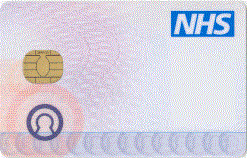
EPS logging in
For EPS functions to operate, a pharmacist or other authorised user needs to log in to the EPS. This log in process authenticates your identity and confirms your right to access the NHS Spine.
However, you will not be able to request the release of a prescription nor notify the NHS Spine that you have dispensed a prescription that you have previously released. Additionally, you will not be able to make a claim or change a patient's nomination details.
Keyboard logging in
Smartcard logging in
Logging in is achieved with the use of a smartcard.
-
If necessary, switch on the Pharmacy Manager server.
-
Once the Windows desktop screen has appeared (or at any point in Pharmacy Manager when the system is already operational) insert the smartcard in the keyboard slot (chip first and chip side facing operator).
-
The light to the left of the slot on the keyboard flashes once the card has been inserted
-
The smartcard software icon in the system tray flashes grey and blue
 .
.
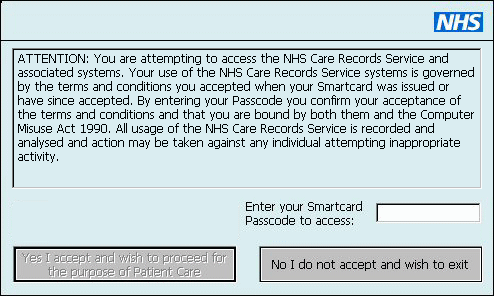
The smartcard authentication software is activated.
When prompted, type in your passcode.
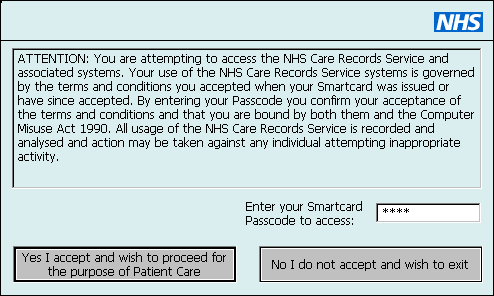
Whilst it is initially disabled, once you have entered your passcode, the Yes button becomes enabled.
Select Yes I accept and wish to proceed for the purpose of Patient Care to confirm. Alternatively, press Enter on your keyboard.
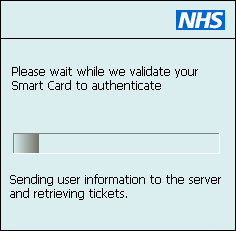
When you select Yes, the authentication window closes and a progress bar displays during the authentication process.
Once you have successfully connected to the NHS Spine, your user identity details display.
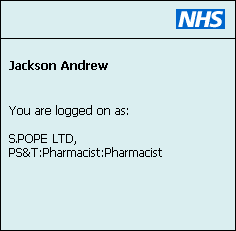
When you are the only user authorised to use this system, no further action is required. The system completes the log in process automatically.
 . The light
to the left of the smartcard slot on the keyboard stops
flashing.
. The light
to the left of the smartcard slot on the keyboard stops
flashing.The system reverts to the Pharmacy Manager or whatever software was in operation e.g. the Windows Desktop screen when you commenced the log in process.
Welcome tab
When the system encounters the imminent expiry of prescriptions advisory alerts display.
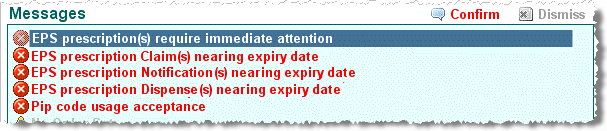
Acknowledge each alert and ensure you deal with the prescriptions promptly in order that you do not lose out.
Log in Variations & Problems
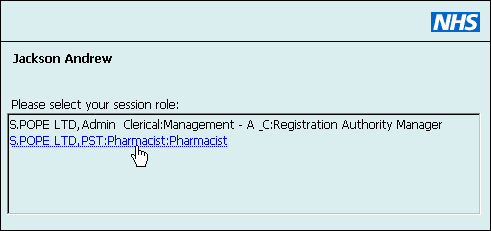
Two or more permitted session roles
If two or more session roles are permitted for this system, follow all the steps above, and then click on the role you wish to use and then allow the log in process to continue automatically.
Users not permitted
Only specific users are registered to use your terminal when it is connected to the CRS.
Some smartcard holders, for example, a general practitioner or a doctor's receptionist will not be able to connect to the CRS through your computer even though they could on their surgery system because they would be operating outside their permitted role.
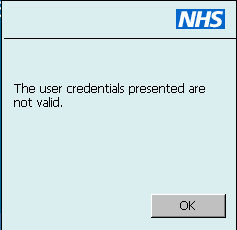
Should such a connection be attempted, this alert message would appear.
Mistyped PIN
If you mistyped your PIN/passcode, you would be prevented from connecting to the CRS.
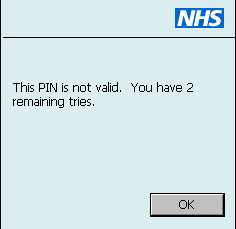
Select OK and repeat the above steps, typing you PIN/passcode correctly.
Smartcard passwords & certificates
This section's guidance is provided for your convenience. However, Cegedim Rx are not responsible for smartcards and any issues that cannot be resolved should b referred to your issuing authority.
Smartcard passcodes and certificates are automatically checked every time you authenticate to the NHS Spine, and you are warned when they are due for renewal or have to be renewed.
You may renew your Smartcard certificates online up to three months before they expire. To do this, go to the Renew Certificates tab on the Self Service Portal at https://digital.nhs.uk/services/national-care-records-service. This link is available to pharmacists on the N3 network.
If you allow the electronic certificates that validate your Smartcard to expire you will no longer be able to log in and access EPS and a Smartcard login failure notice will appear on your screen. You will then need to contact the Registration Authority lead to arrange a face to face visit to upgrade your card.
You can, however, reset your smartcard passcode at any time and it is recommended you do so at regular intervals.
This passcode is case sensitive. It must be 4-8 characters in length, preferably alphanumeric and a mixture of upper/lower case.
You are automatically reminded to renew your smartcard passcode every 365 days. In the 14 days prior to expiry, you will receive an alert once per day, and you can choose to renew your passcode at that time or decline and renew later.
To renew upon receiving a notification, go to the Smartcard service centre (SCSC) on https://digital.nhs.uk/services/national-care-records-service and follow the guidance provided.
For a guide to using the Self Service Portal see https://digital.nhs.uk/ to set your passcode and renew your Smartcard certificate.