Contraception Performance
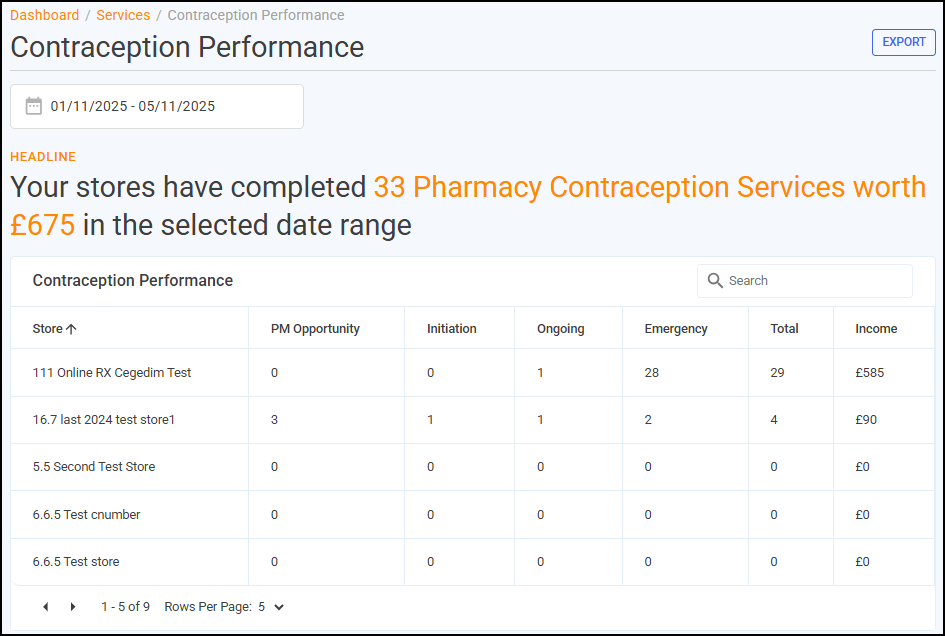
The Contraception Performance screen displays all completed Initiation, Ongoing and Emergency Contraception services across all stores in your group.
Time Frame
To filter the data that displays, you can either:
-
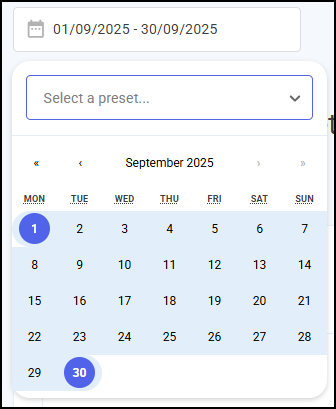
Enter the time frame manually using the calendar, or
-
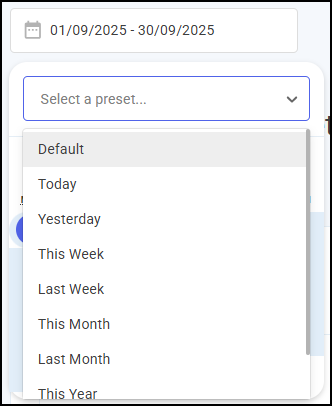
Select a preset time-frame from the available list.
Headline
The Contraception Performance headline provides a real time summary of the number of contraception services completed over the selected time frame.

Contraception Performance Table
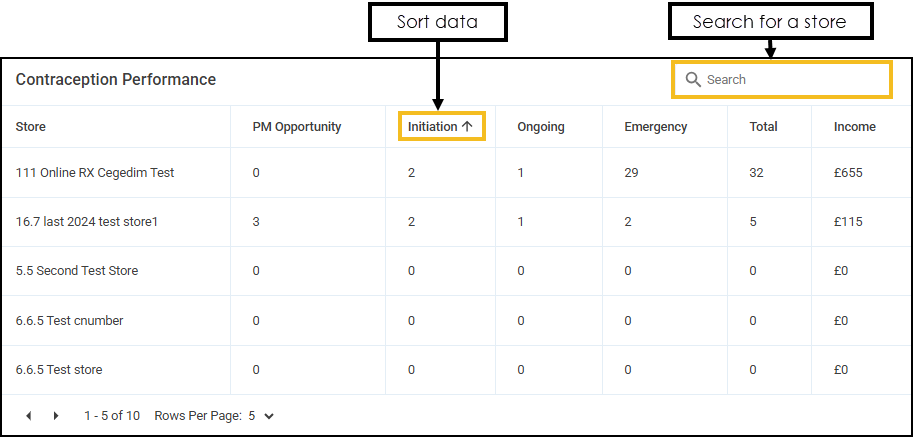
The Store Performance table displays the performance of each store in your group in ranked order.
-
Search - To search for an individual store, enter the store name in Search
 , the table updates as you type.
 -
Sort Data - Select any header to sort your pharmacies by the chosen column. For example, selecting Initiation will sort pharmacies by the total number of initiation contraception services. You can sort ascending or descending as required.
Exporting Data
To export contraception data within your group to a CSV (spreadsheet) file:
-
From the Contraception Performance screen, select EXPORT
 .
. -
The Export screen displays.
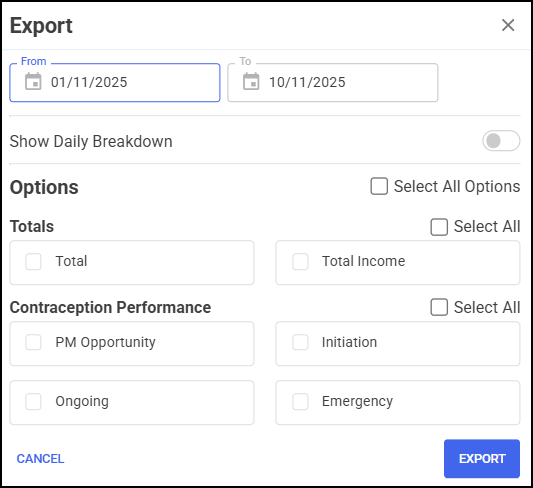
Select from the following:
-
From/To - Set the time frame for the export.
-
Show Daily Breakdown - Select to display a daily breakdown of the contraception services done by each store on each date from the selected date time frame.
-
Options - Choose the data that you want to include in the export file.
Training Tip - Tick Select All Options to include all data on the export file.
-
-
Select EXPORT
 to export the CSV (spreadsheet) file to your local Downloads folder. Training Tip - To view the Downloads folder, open Windows File Explorer, locate and open Downloads. A list of your recently downloaded files display.
 in the top right corner and follow the on-screen prompts.