NMS Active - Store Details
The NMS Active - Store Details screen provides you with an overview of active New Medicine Service (NMS) consultations within a specific store.
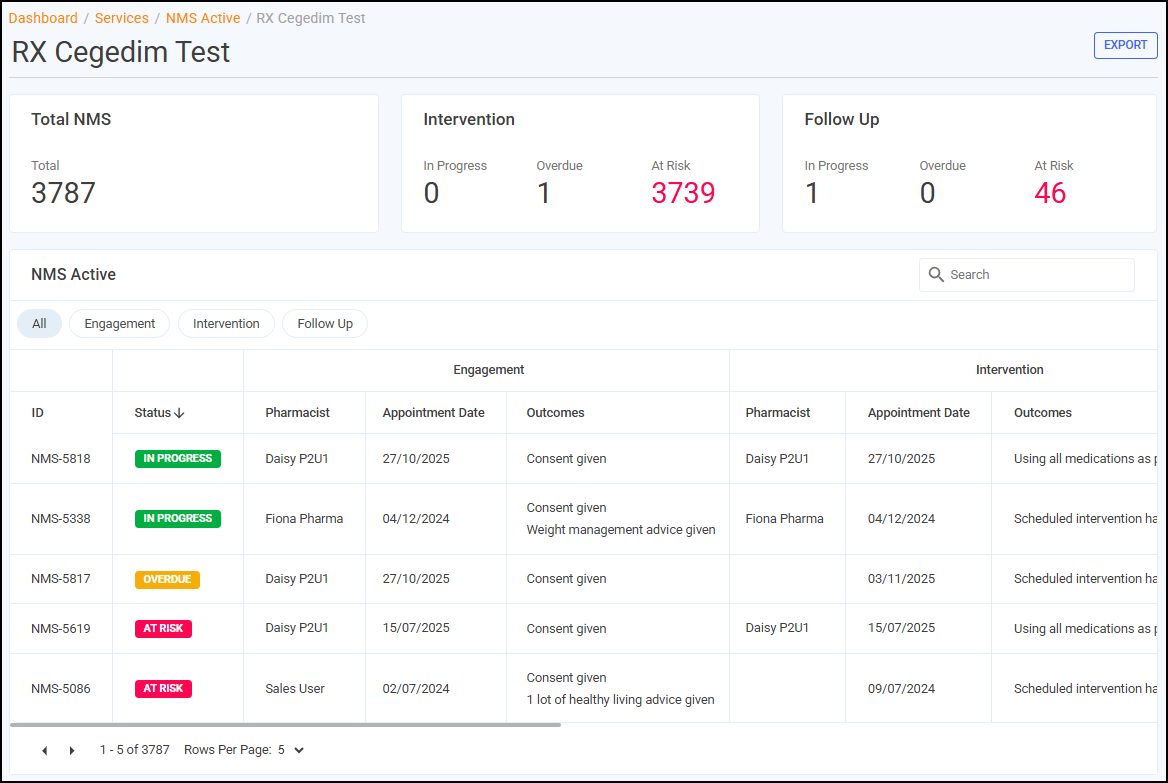
The NMS Active - Store Details tiles display the following information:
-
Total NMS - Total number of active NMS consultations at the store where the Engagement stage is complete.
-
Intervention - Total number of active NMS consultations at the Intervention stage:
-
In Progress - Total number of NMS consultations at the Intervention stage, but not yet Overdue or At Risk.
-
Overdue - Total number of NMS consultations at the Intervention stage, with a scheduled intervention date in the past.
-
At Risk - Total number of NMS consultations at the Intervention stage, where it has been more than 12 days since the completion of the Engagement stage.
-
-
Follow Up - Total number of active NMS consultations at the Follow Up stage:
-
In Progress - Total number of NMS consultations at the Follow Up stage, but not yet Overdue or At Risk.
-
Overdue - Total number of NMS consultations at the Follow Up stage, with a scheduled follow up date in the past.
-
At Risk - Total number of NMS consultations at the Follow Up stage, where it has been more than 19 days since the completion of the Intervention stage.
-
NMS Active Table - Store Details
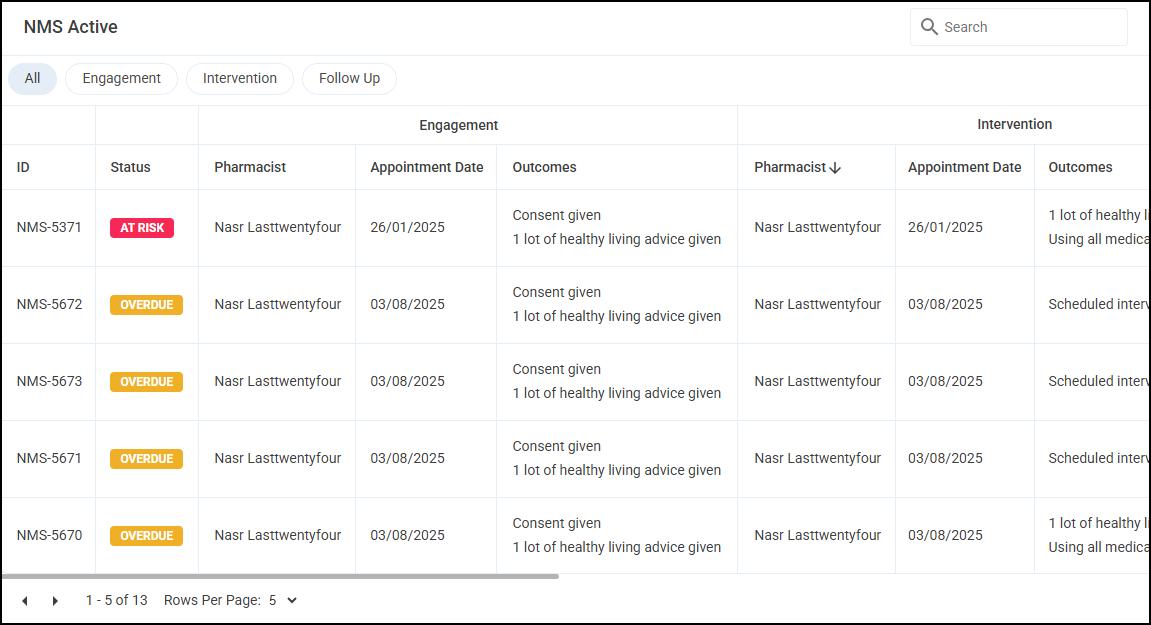
The NMS Active table displays a summary of each active NMS consultation at the store.
-
ID - The NMS case ID (provided by Pharmacy Services). This allows you to communicate with a particular store about a particular NMS episode.
-
Status - The current status of the NMS consultation.
-
Pharmacist - The pharmacist who performed the Engagement, Intervention and Follow Up sessions, where applicable.
-
Appointment Date - The appointment dates of the three sessions; Engagement, Intervention and Follow Up, where applicable.
-
Outcomes - The recorded outcomes of the three sessions; Engagement, Intervention and Follow Up, where applicable.
-
Medication - Displays the patient's medication(s) eligible for the NMS.
-
Conditions - Displays the patient's condition(s) being treated.
Filtering, Sorting and Exporting Data
You can filter and sort the NMS Active - Store Details table using the following.
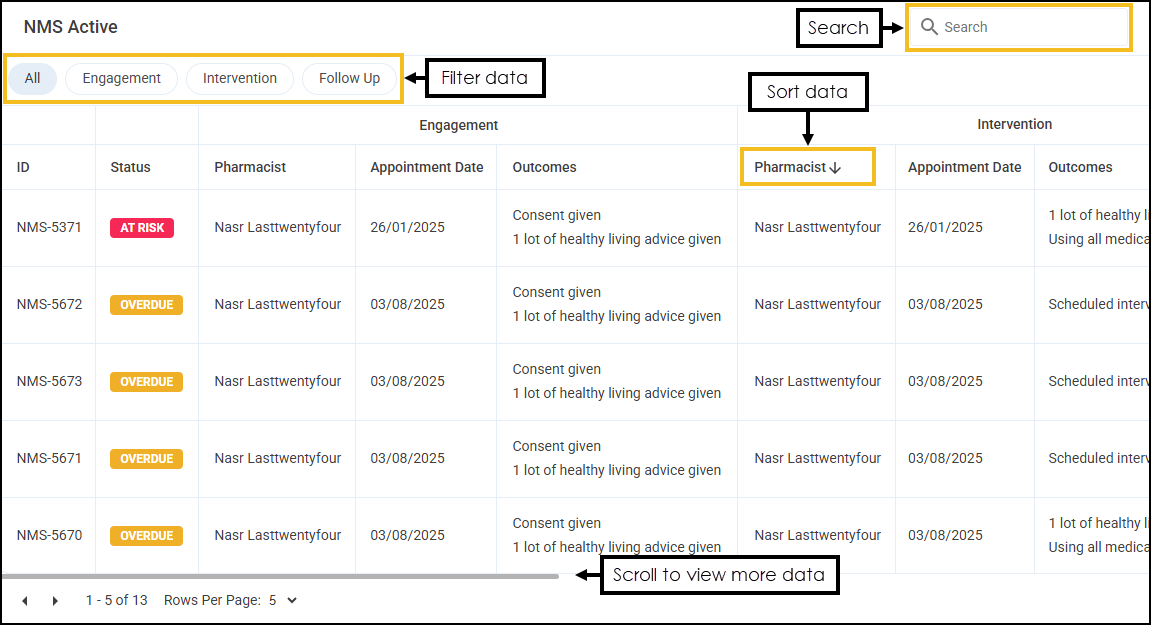
-
Search - To search for a specific NMS consultation enter your search criteria in Search
 , the table updates as you type. Search on data in the ID, Pharmacist or Medication columns.
 -
Filter Data - Select from All, Engagement, Intervention and Follow Up to filter the data that displays.
- Sort Data - To sort the order the data displays, select the column heading, for example, select Pharmacist to sort the consultations by the pharmacist who performed the Engagement, Intervention or Follow Up sessions.
-
Exporting Data - To export the NMS Active data to a CSV (spreadsheet) file, select EXPORT
 to export the CSV file to your local Downloads folder. Training Tip - To view the Downloads folder, open Windows File Explorer, locate and open Downloads. A list of your recently downloaded files display.
 in the top right corner and follow the on-screen prompts.