Deleting Episodes
The option to delete both Active and Completed episodes is available for all services.
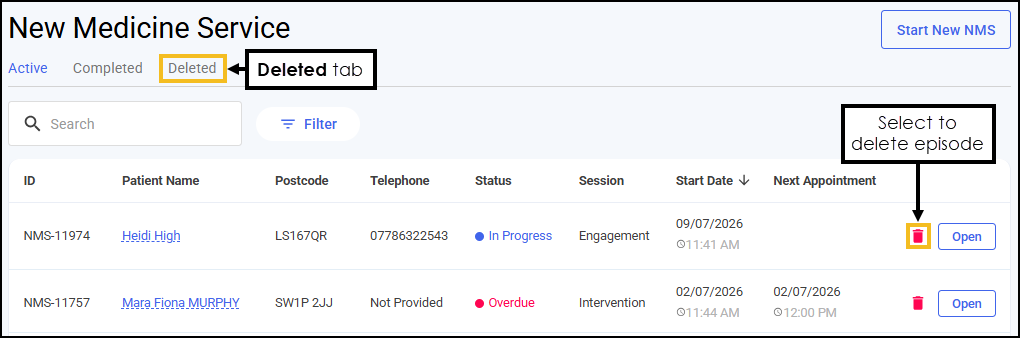
To delete an episode:
-
From the service screen, select either the Active or Completed tabs.
-
Select Delete
 on the episode you want to delete. The Delete Episode screen displays.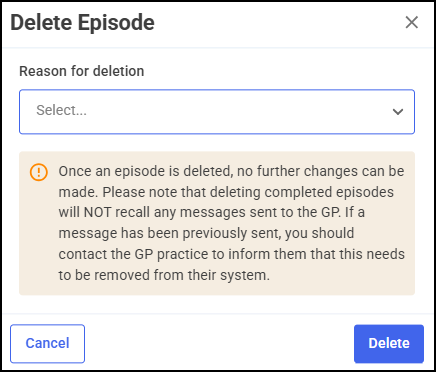
-
Choose a Reason for deletion from the available list.
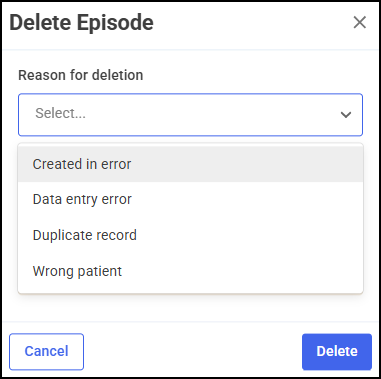
Select from one of the following options:
-
Created in error
-
Data entry error
-
Duplicate record
-
Wrong patient
-
-
Select DELETE
 . The episode moves to the Deleted Tab.Training Tip - Select CANCEL
 to return to the previous screen.
Viewing Deleted Episodes
The Deleted tab displays your deleted episodes for the service. To view deleted episodes:
-
Navigate to the service screen.
-
Select the Deleted tab.
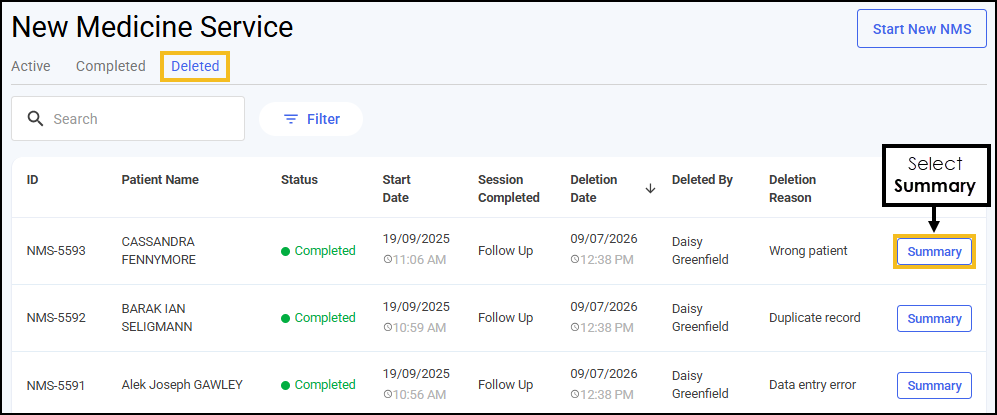 Note - The Deleted tab for each service includes a Deletion Reason column, displayed after the Deleted By column. This shows the reason recorded at the time of deletion.
 -
Select Summary
 next to the required episode. The Deleted service screen displays.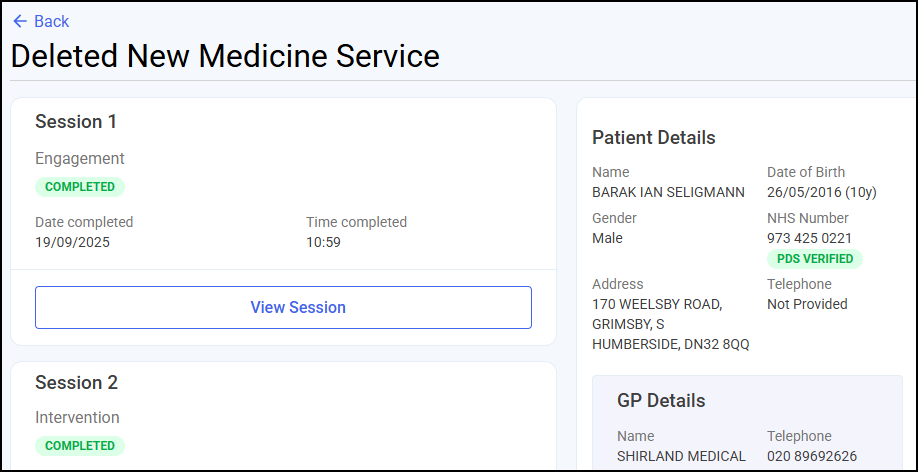
 in the top right corner and follow the on-screen prompts.