Starting a New Hypertension Case-Finding Service
To start a new Hypertension Case-Finding Service:
-
From the Side Navigation Bar select Hypertension Case-Finding
 .
. -
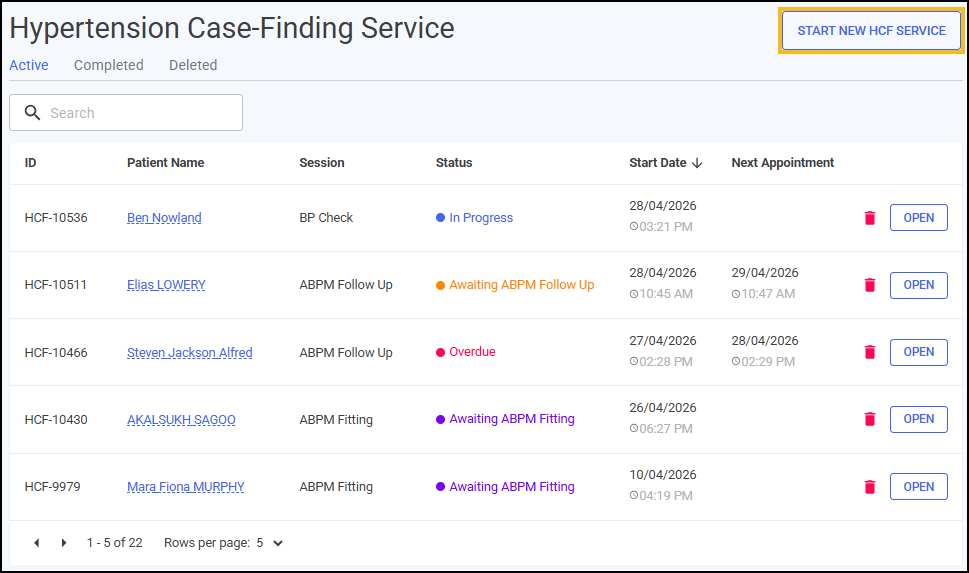
From the Hypertension Case-Finding Service screen, select START NEW HCF SERVICE
 .
.
-
The Patient Search screen displays.
 Note - Select ADD NEW PATIENT from the Patient Search screen when you are certain the patient is not already in the system. Select ADD NEW PATIENT, and any details entered are automatically transferred to the PDS Search screen, saving you time and reducing duplication.
Complete as follows:
-
Family name - The Family name section is mandatory and requires a minimum of two characters.
-
Given name
-
Date of birth
-
Postcode
-
-
Select SEARCH
 or press Enter on your keyboard and the Patient Search Result screen displays a list of patients matching your criteria.
 Note - The Patient Search database includes patients added by your store or stores within your group.
If a patient does not exist in Pharmacy Services, No Patients Found displays.

Select BACK TO SEARCH
 to amend your search criteria and try again, or ADD NEW PATIENT
  to create a new patient using the following steps:
 Adding a New Patient
If a patient does not exist in Pharmacy Services, you can create a new patient record. To add a new patient:
-
From the Patient Search Result screen, select ADD NEW PATIENT
. -
The Patient Search screen displays.

You can search the Patient Demographics Service (PDS) by name or NHS number, or choose to enter details manually:
SEARCH PDS
Select one of the following methods of input to search for a patient record on PDS:
NAME SEARCH
NAME SEARCH displays as default. If you have a patient's Given name, Family name, Gender and Date of Birth, you can populate a patient's details in Pharmacy Services with the details retrieved from PDS.
To search PDS:
-
Enter a patient's Given name, Family name, Gender and Date of Birth.
Important - To have the best chance of retrieving a patient's record from PDS it is important to check you have entered the patient details correctly. -
Select SEARCH PDS
 to search for a patient on PDS.
-
If a patient is successfully found on PDS, the patient's details populate automatically in Pharmacy Services.

Confirm that the patient details from PDS are correct.
Training Tip - Select EDIT if you need to manually amend any details or enter any accessibility information.
-
If a patient cannot be found using the details provided, a warning displays 'No patient could be found on PDS using the details provided, please enter patient details manually'. Select ENTER DETAILS MANUALLY
 and follow the instructions.
-
NHS NUMBER SEARCH
If you have a patient's Date of Birth and NHS Number, you can populate a patient's details in Pharmacy Services with the details retrieved from PDS.
To search PDS:
-
From the Patient Details screen, select NHS NUMBER SEARCH.
Training Tip - Select NAME SEARCH to return to searching for the patient by name. -
Enter a patient's Date of Birth and NHS Number.
-
Select SEARCH PDS
to search for a patient on PDS.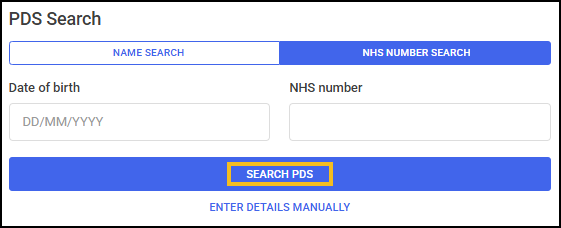
-
If a patient is successfully found on PDS, the patient's details populate automatically in Pharmacy Services.
Confirm that the patient details from PDS are correct.
Training Tip - Select EDIT if you need to manually amend any details or enter any accessibility information. -
If a patient cannot be found using the details provided, a warning displays 'No patient could be found on PDS using the details provided, please enter patient details manually'. Select ENTER DETAILS MANUALLY
and follow the instructions.
-
Enter Details Manually
Select ENTER DETAILS MANUALLY and the Patient Details screen displays.
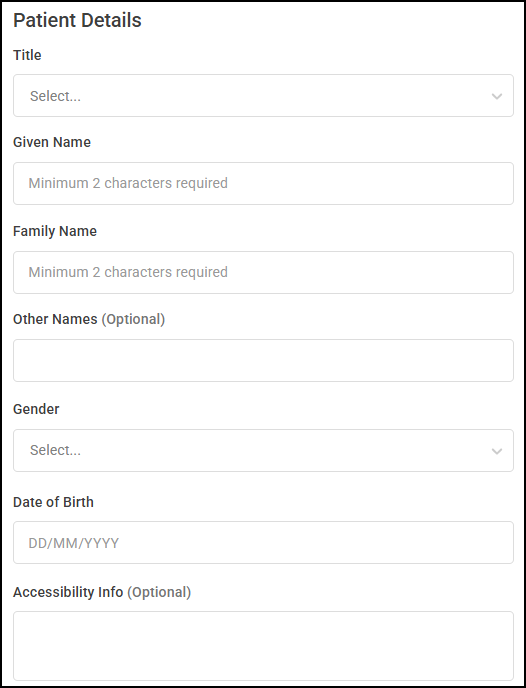
Complete as required:
-
Patient Details:
-
Title - Select from the available list.
-
Given Name
-
Family Name
-
Other Names (Optional)
-
Gender - Select from the available list.
-
Date of Birth
-
Accessibility Info (Optional) - Enter any accessibility information as required up to 500 characters.
-
-
Contact Details:
-
Preferred Contact Number
-
Email (Optional)
-
-
Address Details:
-
Address Lines 1-5
-
Postcode
-
No Fixed Abode - Select if the patient does not have an address.
Note - Address and Postcode do not display when you select this option.
-
-
Patient GP Details - Select ADD GP PRACTICE
 to search for a GP practice. The GP Practice Search screen displays.
Enter the Practice Name, Address and Postcode and select SEARCH
. Select the GP Practice required from the available list. Note - You can search using multiple categories, but you must enter at least three characters in a search category.
-
-
Select ADD PATIENT
 and the patient is added to the system.
-
-
Select CHOOSE PATIENT
 to start an episode with the selected patient. The Hypertension Case-Finding Service screen displays, see Hypertension Consultation for more information.
 in the top right corner and follow the on-screen prompts.