Pharmacy Details - EPS
How do I create an Audit Grid on Dispensing Tokens? - England only (3:22)
The EPS tab allows you to configure your Electronic Prescription Service (EPS) prescriptions.

The EPS tab includes three further tabs:
 Logging
The section is activated by the Cegedim Rx Service Desk to enable detailed logging to take place and aid the resolution of problems:

General
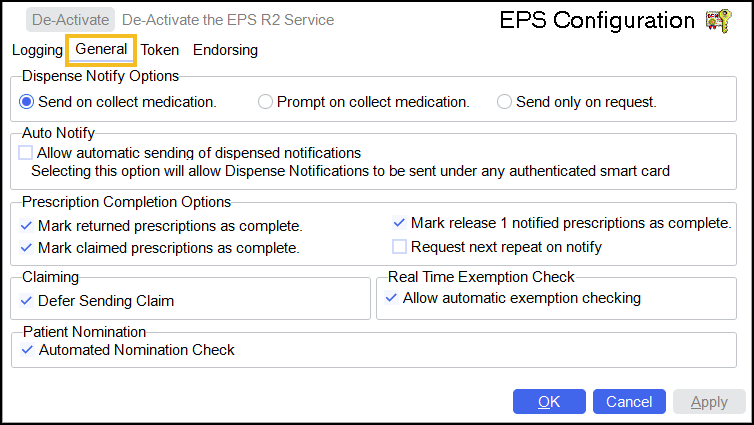
-
Set when the dispense notification is sent:
-
Send on collection medication - When the prescription is set as collected the dispense notification is sent without further user input.
-
Prompt on collect medication - When the prescription is set as collected a confirmation prompt displays to send the notification. Select Yes
 to send the dispense notification.
 -
Send only on request - Select to collect and notify the prescription separately.
-
-
Auto Notify - Handout Manager only:
-
Allow automatic sending of dispensed notifications - Select to automatically send dispense notifications under any authenticated smartcard, when marking a prescription as collected on your Handout Manager device.
-
-
Prescription Completion Options - Select to automatically update the status of complete electronic messages:
-
Mark returned prescriptions as complete
-
Mark claimed prescriptions as complete
-
Mark release 1 notified prescriptions as complete
-
Request next repeat on notify - Enable automatic download of the next repeat iteration when EPS R2 repeat dispensing scripts are fully notified.
-
-
Claiming:
-
Defer Sending Claim - Select to defer sending a claim.
-
-
Real Time Exemption Check:
-
Allow automatic exemption checking - Select to enable automatic real time exemption checking.
-
-
Patient Nomination:
-
Automated Nomination Check - Automatically display a patient's pharmacy nomination status on the Dispensing screen.
See Updating a Patient's Nominated Pharmacy for details. -
Token
-
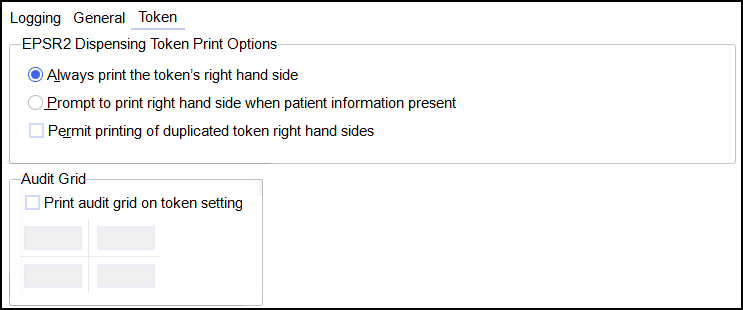
EPSR2 Dispensing Token Print Options - Set how the right-hand side of a dispensing token is printed:
-
Always print the token's right hand side - Default option, select to always print the right-hand side of the dispensing token even if there is no additional information.
-
Prompt to print right hand side when patient information present - Select to receive a prompt to choose whether or not to print the right-hand side of the dispensing token.
-
Permit printing of duplicated token right hand sides - Select whether or not you wish to produce any duplicated token right-hand sides as a regular policy.
-
-
-
Print audit grid on token setting - Select to print an audit grid on the dispensing token. Enter the text to print on the grid, with a maximum of four characters per text box, for example.
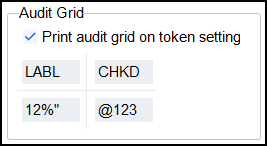
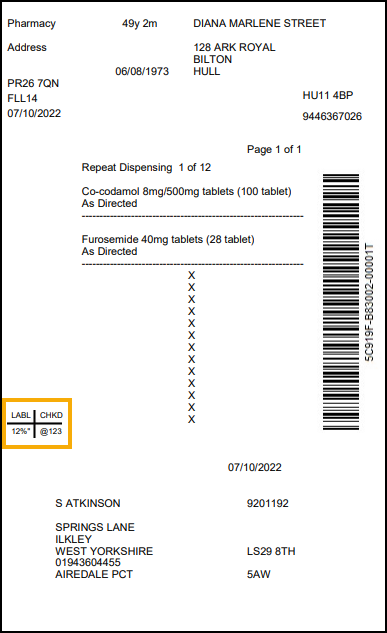
The audit grid displays on the dispensing token.
-
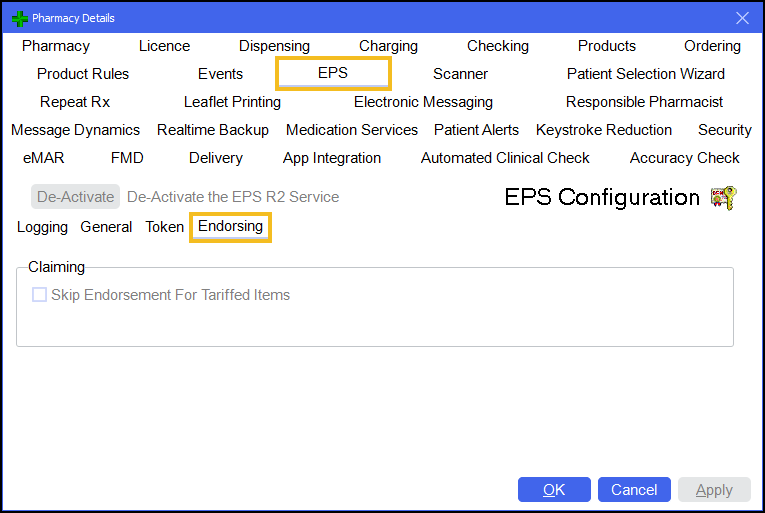
Endorsing
-
Claiming:
-
Skip Endorsement For Tariffed Items - Skip endorsements prior to sending a claim for EPS prescriptions where an endorsement is not required by the NHSBSA, and the exemption does not require additional confirmation, for example if the patient is age or RTEC exempt.
Note - All items on the prescription must be in tariff parts VIIIA, IXA, IXB, or IXC for the endorsement to be skipped.Training Tip - You can still add optional endorsements using Endorse on the Dispensary and eMessages screens if required.
-
 in the top right corner and follow the on-screen prompts.