New Medicine Service (NMS) Candidate Enrolment
You can register a patient for NMS at the time of printing the labels for the medication.
Configure NMS
To enable the New Medicine Service, from Pharmacy Details - Checking - Services, select Enable New Medicine Service. Then select the alert type, either an on screen alert or to print a reminder label.

On Screen Alert
When the configuration is set to Display onscreen alert and you dispense a prescription which includes one or more medication items that meet NMS criteria, the system generates a prompt when completing the prescription.
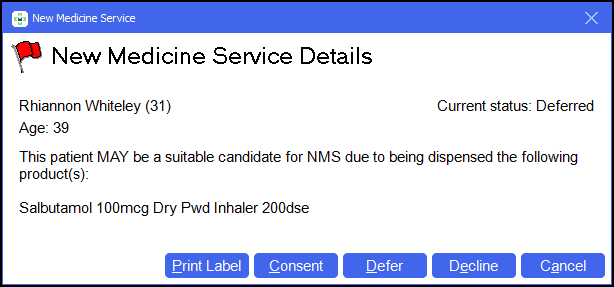
Print label
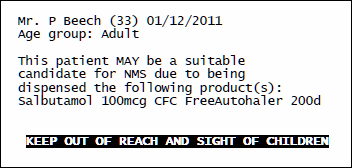
If the patient is a candidate for NMS but is not present to collect their medication and to provide consent, you can produce an additional label as a reminder for when they return to collect their medication. To do this:
-
Select Print label, or press Alt + P on your keyboard.
A label prints out identifying the patient and the qualifying prescription item(s).
Consent
If the patient consents for NMS, perhaps you identify them as a candidate before any labels are printed, and they complete the required consent form. When labelling is complete, you can then record their consent. To do this:
-
Select Consent or press Alt + C on your keyboard.
From 1st October 2011, written consent must be obtained when providing services such as NMS & MURs. Verbal consent is insufficient.
Defer
If the you are not in a position to obtain patient consent but the patient has not declined to participate, they may wish to consider their candidacy before making a decision, you can record a deferred decision. To do this:
-
Select Defer or press Alt + D on your keyboard.
Decline
If the patient is a candidate for NMS but has declined, you can report it here. To do this:
-
Select Decline or press Alt + E on your keyboard.
Cancel
To close the prompt without selecting any option, select Cancel or press Alt + A on your keyboard.
Updating Decisions
Any patient can change their mind and you can record the new decision. For example, at a later point you can register any the consent of any patient who has declined initially or where you have printed a reminder label. To do this:
-
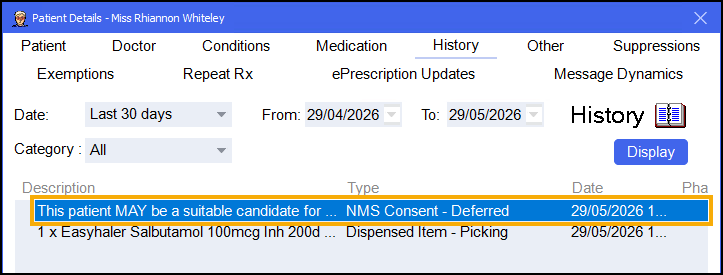
Access the patient's history, see Patient Details - History for details.
-
Highlight the item with a type of NMS Consent.
-
Double click to open the New Medicines Service Details screen.
-
Select the new response from the options.
Formulation changes
If the medicine formulation for an NMS qualifying product changes, a subsequent alert appears.
Such a patient might not normally be eligible for NMS, they may have enrolled on the service for their original medication, but they may now require additional guidance for the new formulation. For example, they may be changing from tablets to an inhaler and would require guidance on the correct use of the inhaler.
Some formulation changes will not be sufficient to activate a further prompt, for example, a change from tablets to capsules.