Pharmacy Details - Checking
The Checking tab allows you to set up the system to help you check your prescriptions automatically.
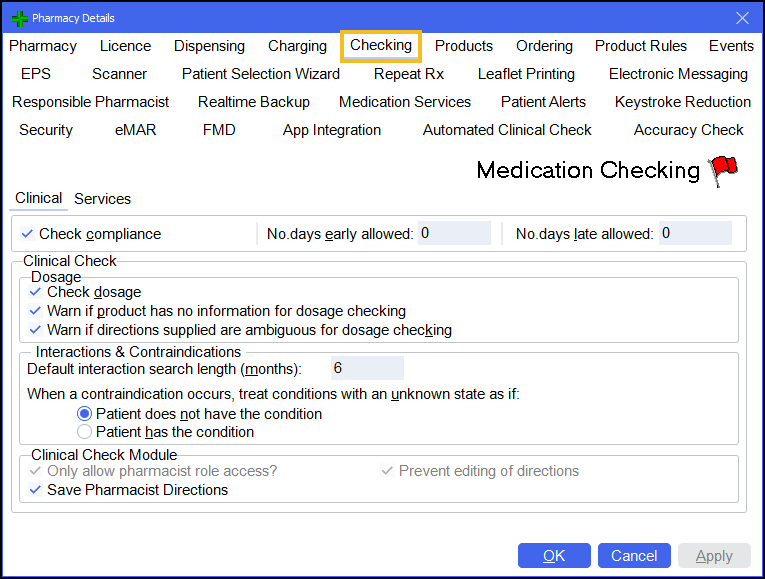
The Checking tab is split into three subsequent tabs:
 Clinical
Check compliance
Clinical
Check compliance
This section monitors whether a patient is coming back for more medication too early or too late, based on the previous quantity and dosage.
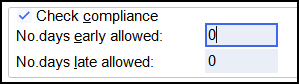
Complete as outlined below:
- No. days early allowed - Enter the number of days early you consider acceptable.
- No. days late allowed - Enter the number of days late you consider acceptable.
A warning displays on screen if you dispense medication outside of this range.
Dosage
This section allows you to monitor the Pharmacy Manager product file's dosages based on the product's literature.

Complete as outlined below:
- Check dosage
- Warn if product has no information for dosage checking
- Warn if directions supplied are ambiguous for dosage checking
Interactions & Contraindications
This section allows you to monitor how interactions and contraindications are managed within Pharmacy Manager.
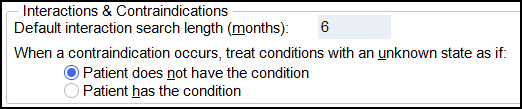
Complete as outlined below:
- Default interaction search length (months) - Enter the number of months you wish the system to check patient records when it does an interaction search.
- When a contraindication occurs, treat conditions with an unknown state as if - Choose whether the system treats all patients who have no 'Conditions' information entered (therefore with an unknown state) as having all conditions, or having no conditions.
Clinical Check Module

Complete as outlined below:
-
Only allow pharmacists role access? - Select to restrict access to the clinical check module to pharmacists only.
Training Tip - The job role is set in Tools - User Settings - User Account Management. -
Prevent editing of directions - Select to prevent editing of directions on the Dispensing screen after the clinical check has taken place.
-
Save Pharmacist Directions - Select to save the label directions set by the pharmacist during a clinical check.
Directions are saved for future use as long as the follow are the same:
-
The patient
-
The prescribed item
-
The prescribed directions for the item
Note - Upon enabling this option, Only allow pharmacists role access? is automatically enabled as only a pharmacist can save the directions. -
Services
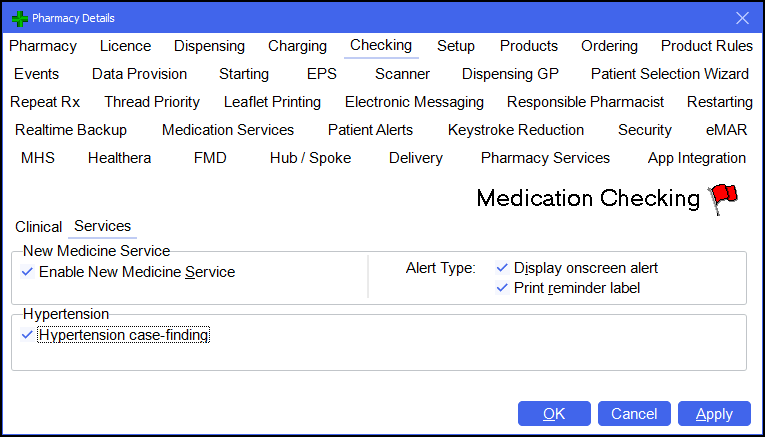
New Medicine Service (NMS)
This section allows you to determine how NMS alerts are managed.

Complete as outlined below:
- Enable New Medicine Service - NMS alerts for candidate patients can be enabled by selecting Enable new medicine service. Alternatively, press Alt + S on your keyboard.
- Alert Type - Set the alert type:
- Display onscreen alert
- Print reminder label
Hypertension

Select Hypertension case-finding to enable hypertension case-finding labels.
 in the top right corner and follow the on-screen prompts.