Dispensing Multiple Pack Sizes
On occasion, to avoid creating an owing, you may have to provide more than one brand or pack size of an item in order fulfill a prescription. Where this can be done safely, you need to record the quantity dispensed in order to maintain separate stock levels correctly. It is also necessary for endorsements and reimbursement claims for electronic prescriptions.
To dispense multiple pack sizes of an item:
- Start the dispense in the usual way, see Dispensing an Electronic Prescription or Dispensing a Paper Prescription for details.
- Select the appropriate item and pack size for an item you have in stock.
-
In Directions, enter the directions to print on the label. To enter directions, either:
-
Enter the directions in full, or
-
Use the pre-defined dose codes, for example, for 'One to be taken Daily' enter '1 d '.
Training Tip - Note the space after the 1 and the d. -
Select Direction
 and the Find Direction screen displays, enter part of the description required and select Find. Select the direction required and select OK: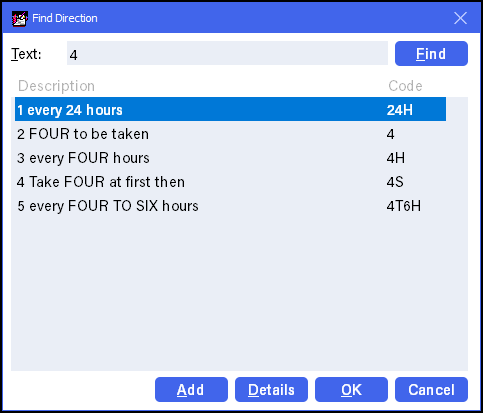
-
-
Choose Item - Select Multiple Items or press Ctrl + Alt + U on your keyboard. The Select multiple items screen displays:
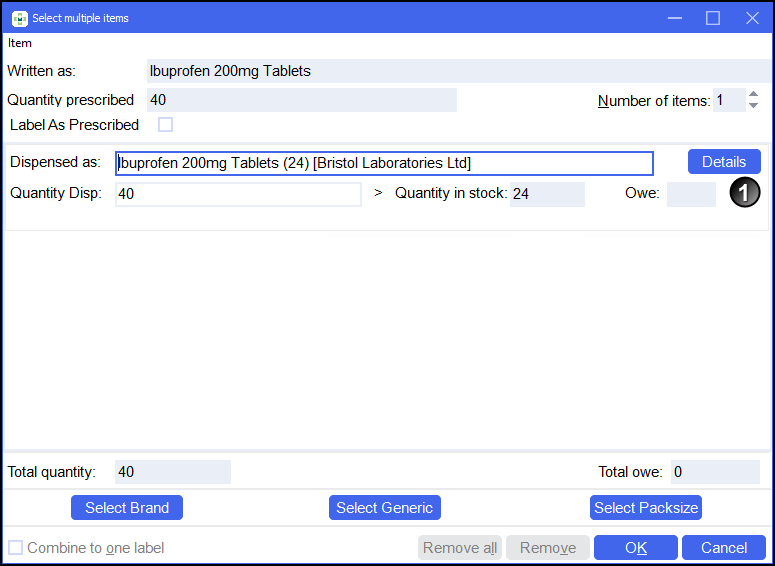
- In Number of items, specify the number of items/packs to be dispensed, either:
- Select the up and down arrows, or
- Press Alt + N on your keyboard and then use the up and down arrows on your keyboard:
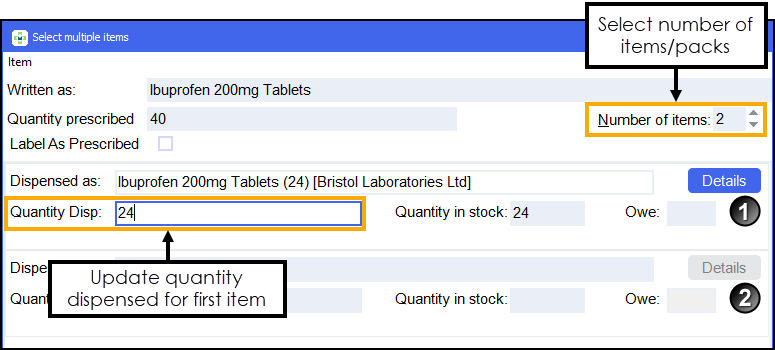
- The first item populates with the details provided on the Dispensary screen, update the value in Quantity Dispensed to the correct amount for this item.
- Highlight the second item and choose Select Packsize to view additional pack sizes for this item. The Alternative Pack Substitution screen displays:
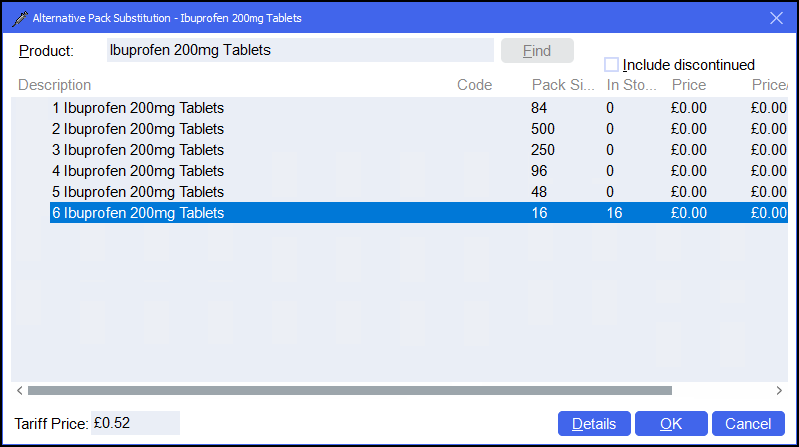 Training Tip - You can also choose Select Brand to view brand substitutions or Select Generic to view alternative generic items.
 -
Select the item required and then select OK
 .
. - In Quantity Disp, enter the quantity for the second item/pack:
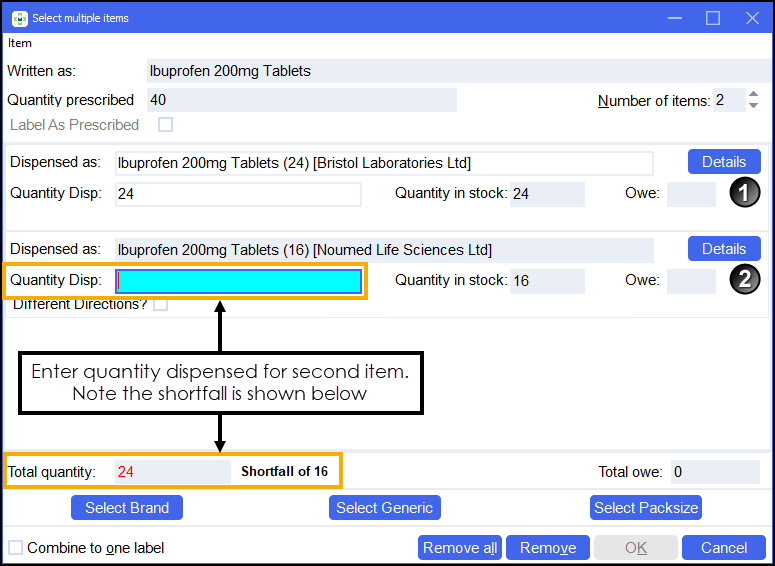 Training Tip - Total quantity displays the quantity across all items and the shortfall where appropriate.
 - Select OK .
- A blue plus
 displays on the Dispensary screen to indicate you are dispensing multiple items. You can select the blue plus to edit the items if required: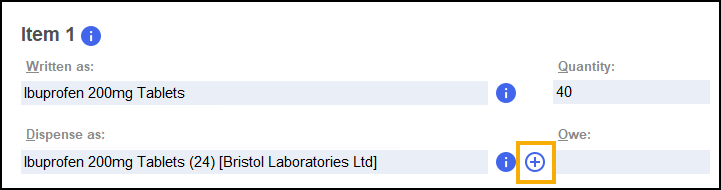
- Select Confirm
 and then Finish
 to finish the dispense.
 -
The labels print and if set up the Dispensary Supply screen displays detailing the multiple items/pack sizes:
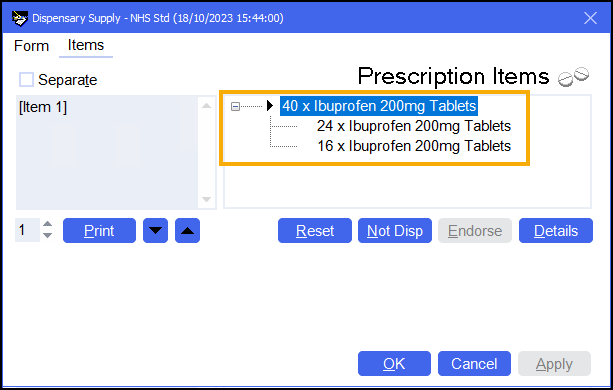
Complete the endorsement in the usual way.
 in the top right corner and follow the on-screen prompts.