Part Collect Items
You may find that when handing out bags to a patient, they may either want to collect items later or not at all. This can be completed during the handout process.
-
Sign in to your Handout Manager hand held device using the screen lock PIN.
-
Select your sign-in from the list provided and enter your six digit passcode.
-
Select GET STARTED
 .
.
-
Select Handout Bags
 .
.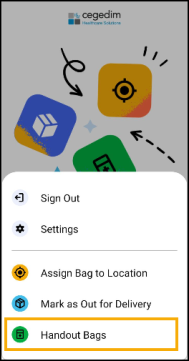 Note - Mark as Out for Delivery is currently inactive and intended for future functionality.
 -
The Search screen displays.
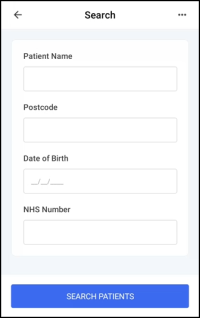
Enter any of the following criteria:
-
Patient Name
-
Postcode
-
Date of Birth
-
NHS Number
-
-
Select SEARCH PATIENTS
 .
. -
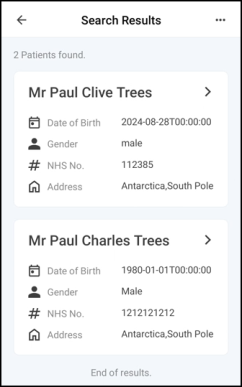
The Search Results screen displays matching patients that have a bag awaiting handout or is awaiting to be assigned a shelf, select to confirm the correct patient.
-
The Scan Bags screen displays the patient's uncollected bags.
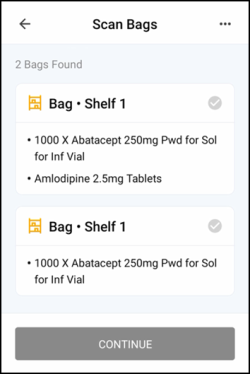 Training Tip - If a bag is not yet assigned a location it displays as Bag•Unassigned Location.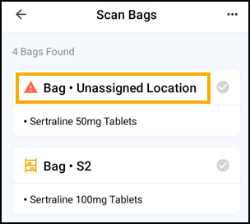
-
The Scan Bags screen displays, locate the bags and scan the bag labels. A green tick
 displays next to the scanned bags.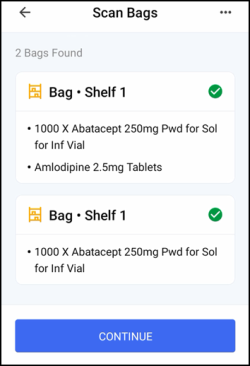
-
Once all bags are scanned, select CONTINUE
 .Note - You cannot select CONTINUE until all bags are scanned.Note - If you leave this screen and return, you must scan the bags again.
-
The Items to Collect screen displays detailing the prescriptions and the items within the bags.

To remove an item, select Remove
 next to the required item.
 -
Should an item appear in multiple bags, you are warned to ensure that it is removed from all bags before proceeding.
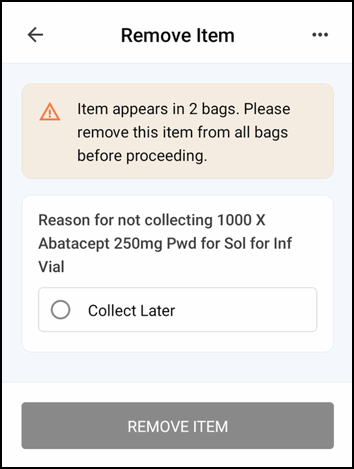
Select the reason for not collecting:
-
Collect Later - The patient does not want to collect this item at this time.
-
-
Select REMOVE ITEM
 .
. -
The Items to Collect screen updates to show the items still to be handed out and the items removed with the reason why.
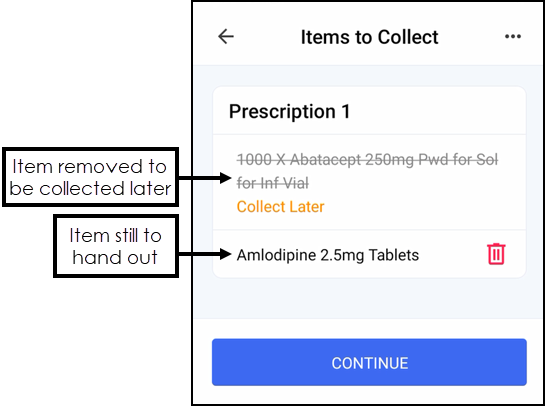
Select CONTINUE
. -
Continue to apply patient exemptions as per the process in Handing out Bags.
-
Depending on the removal reason:
-
Collect Later - Some Items in Bag - Once the handout is complete and some items were removed from a bag with the reason of Collect Later, you are warned on the Handout Complete screen 'Some items have been marked for later collection. You will need to place these items in a new bag, print a bag label, and assign it to a location. Bags requiring a label to be printed will display on the Uncollected Bags screen in Pharmacy Manager'.
See Uncollected Bags for details on printing a new bag label. -
Collect Later - All Items in Bag - Once the handout is complete and all items were removed from a bag with the reason of Collect Later, you are warned on the Handout Complete screen 'Please reassign any remaining bags not being collected to a new location, to ensure that the correct location will be saved against the bag'.
See Assigning Bags to Locations for details.
Prescriptions with items still to collect display on the eMessages screen with a status of In progress - Part Collected.

-
Patient History Updates
On Handout the patient history updates with Handout Details containing the items handed out, any items deferred and exemptions captured.
Example 1
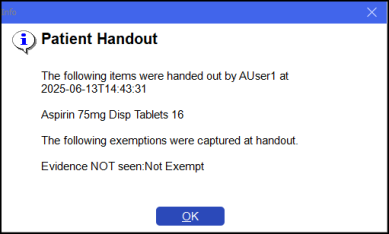
Asprin was handed out to the patient and patient was not exempt.
Example 2
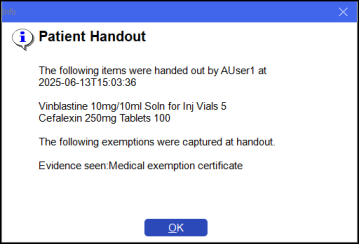
Vinblastine and Cegalexin were handed out to the patient and patient's exemption, a medical exemption certificate, was seen.
Example 3
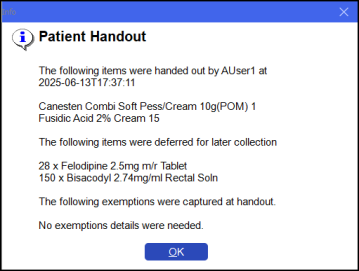
Canesten and Fusidic Acid creams were handed out to the patient, the patient did not want to collect Felodipine and Bisacodyl so the items were deferred for collection at a later date. The patient was RTEC exempt so no exemption details were needed.
 in the top right corner and follow the on-screen prompts.