Integration with Online Doctor
Receiving Online Doctor Prescriptions
Online Doctor prescriptions download directly to Pharmacy Manager with the Message Type of Online Dr.
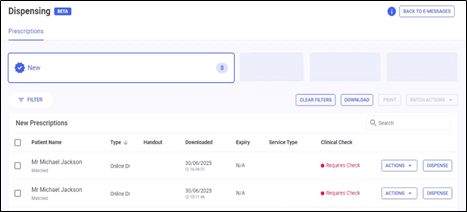
Printing Online Doctor Dispensing Tokens
To print Online Doctor prescriptions:
-
Select individual or multiple prescriptions.
-
Select PRINT.
-
The prescription token(s) opens in PDF format which you can print.
Dispensing Online Doctor Prescriptions
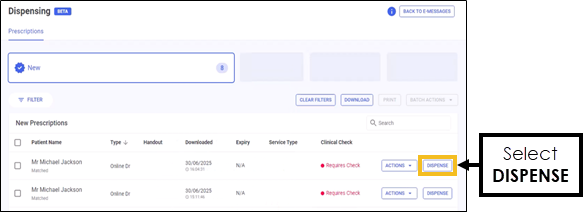
To dispense an Online Doctor prescription:
-
Perform a clinical check on the Online Doctor prescription you want to dispense.
See Clinical Check - Manual (England) for details. -
Select Dispense
 .
.
-
The Dispensary screen displays with the form type set to Private
 .
.Continue to dispense as you would an electronic prescription.
For details on how to dispense multiple pack sizes, see Dispensing Multiple Pack Sizes. -
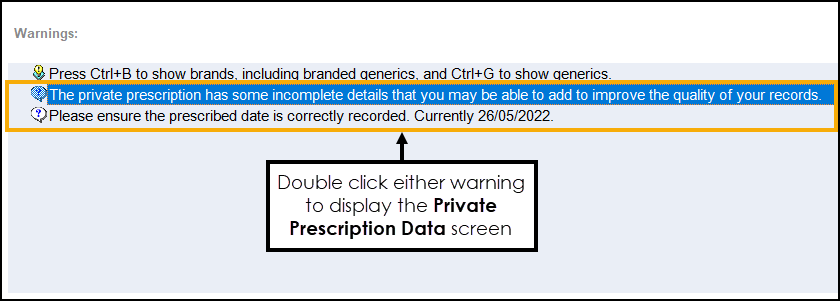
If required you can add more details to the private prescription, double click the warnings to display the Private Prescription Data screen.
 The Private Prescription Data screen displays, select here to view more details
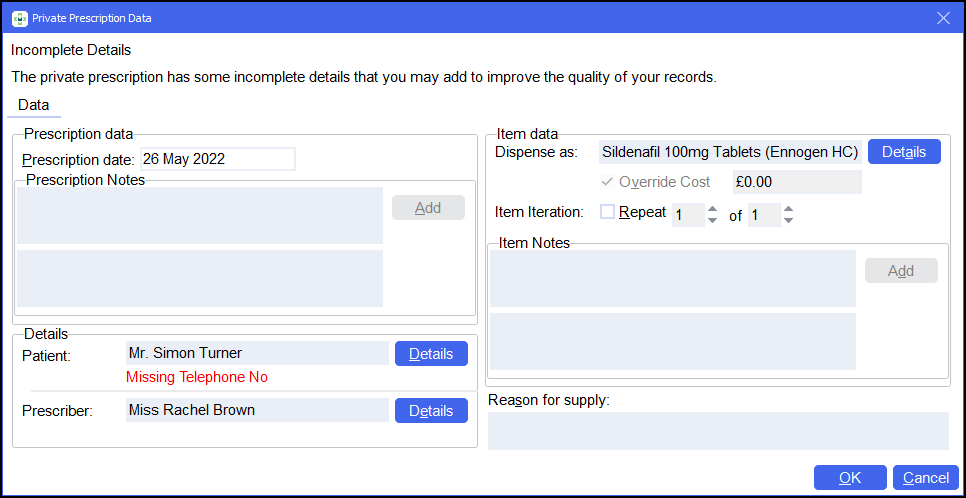
Complete as follows:
- Prescription data:
- Prescription date - Enter the date of the prescription (required).
- Prescription Notes - Enter any notes for the prescription if required and select Add
 to save.
- Details:
- Patient - Select Details
 to update if required, any missing data is listed below the grey area.
 - Prescriber - Select Details to update if required, any missing data is listed below the grey area.
- Patient - Select Details
- Item data:
- Dispense as - Select Details to update if required.
- Override Cost - If you have established a charging
formula, Pharmacy Manager automatically calculates the price of
the item. Tick to update the cost if required.See Pharmacy Details - Charging for details.
- Override Cost - If you have established a charging
formula, Pharmacy Manager automatically calculates the price of
the item. Tick to update the cost if required.
- Item Iteration - Tick if this is a Repeat and set the issue number and the total number.
- Item Notes - Enter any notes for this item if required and select Add to save.
- Dispense as - Select Details
- Reason for supply - Enter the reason for supply.Training Tip - The reason for supply is annotated in the Private Prescription Register.
- Prescription data:
-
Select Finish
 to print the item labels and picking list labels. The prescription displays as Awaiting Accuracy Check.Note - The prescription will not display on the Private Prescription report until the prescription has been collected, see Private Prescription Register Report for details.
Resetting Online Doctor Prescriptions
To reset an Online Doctor prescription before collection, select ACTIONS  , and then select RESET.

The prescription displays with a status of New - Ready to dispense.
Rejecting Online Doctor Prescriptions
To reject an Online Doctor prescription, select ACTIONS  , and then select REJECT.
Recalled Online Doctor Prescriptions
If the prescriptions are recalled, depending on the status, the following occurs:
-
Recalled New or Rejected Prescriptions - If the prescription has a status of New - Ready to dispense or Rejected when it is recalled the status changes to Recalled and you are advised that a prescription is recalled in the Notification Centre.
-
Recalled In Progress or Complete Prescriptions - If the prescription has a status of In Progress - Awaiting Collection, In Progress - Outstanding owings or Completed, the status does not change however you are advised Prescription Recall Failed in the Notification Centre.
 in the top right corner and follow the on-screen prompts.