Signing in to CRx Scan (Formerly Handout Manager)
CRx Scan (Formerly Handout Manager) - Signing in to CRx Scan (Formerly Handout Manager) (0:55)
To sign in to CRx Scan (Formerly Handout Manager):
-
Sign in to your CRx Scan (Formerly Handout Manager) hand held device using the screen lock PIN.
If you are locked out of the hand held device, contact the Service Desk to resolve this, see Contacting us for support for details. -
Open Handout Manager
 from the device desktop.
 -
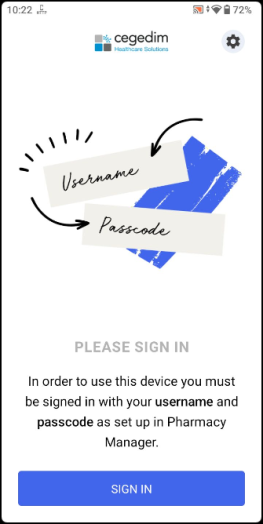
From the Please Sign In screen, select SIGN IN
 .
.
-
The Who's logging in screen displays, select from the list of available users.
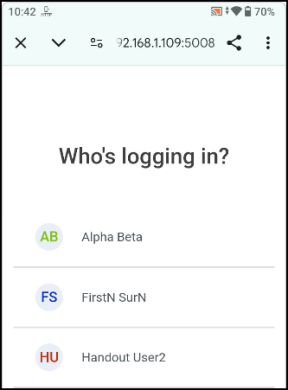 Only users with CRx Scan (Formerly Handout Manager) permissions in Pharmacy Manager display in this list. See Creating Device User Accounts for details.
 -
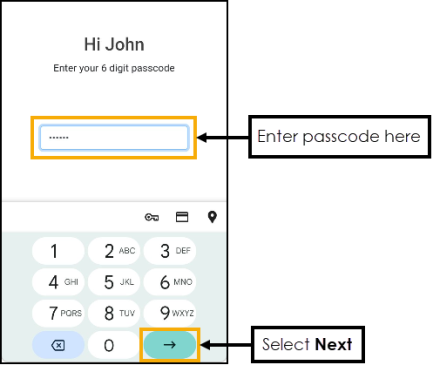
Enter your passcode and select Next
 .
.
-
The Getting Started screen displays.

Select GET STARTED to do the following:
-
Assign a bag to a location, see Assigning Bags to Locations for details.
-
Handout bags, see Handing out Bags for details.
Forgot your Passcode?
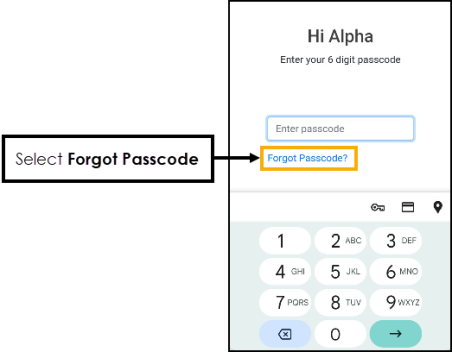
If you forget your passcode, use the following instructions to create a new passcode:
-
From the Enter your 6 digit passcode screen, select Forgot Password.
-
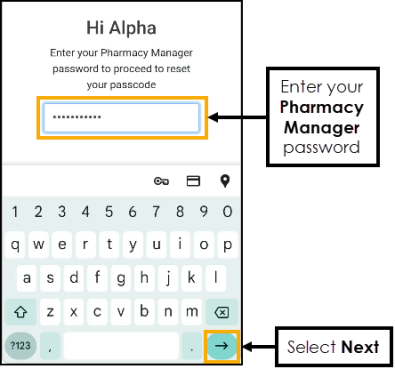
Enter your Pharmacy Manager password and select Next
.
-
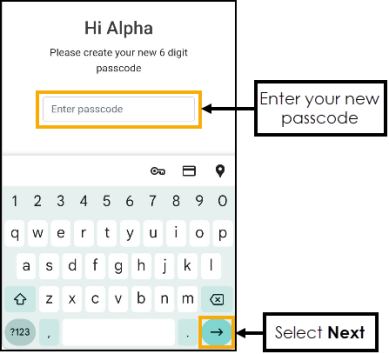
Enter a new 6 digit passcode and select Next
.
-
The Passcode updated successfully screen displays, select Login
 to continue.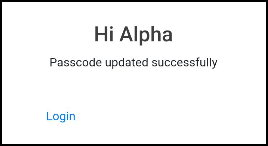
 in the top right corner and follow the on-screen prompts.