Owings Overview Screen
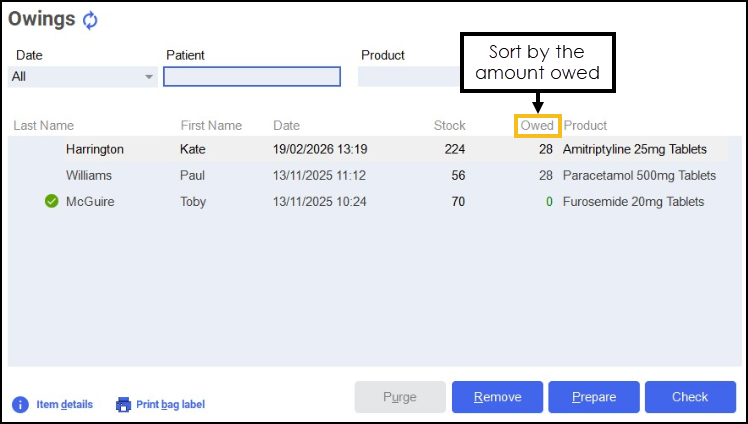
The Owings screen displays all of your prescriptions that have been partially dispensed where outstanding medication is still owed to the patient.
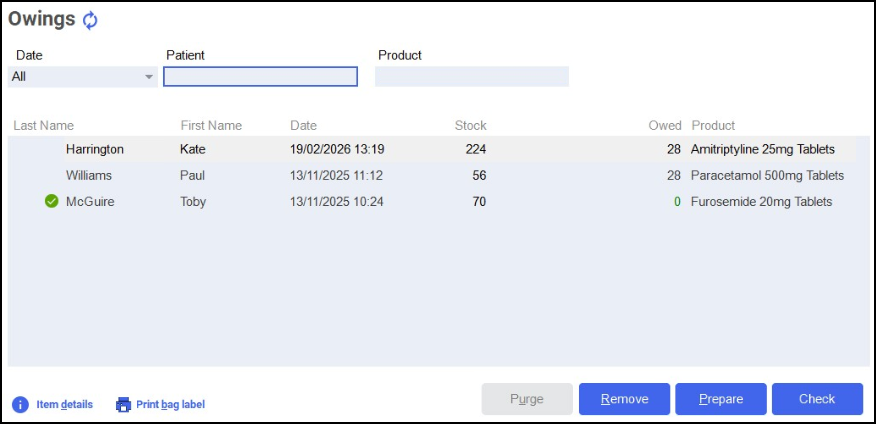
There are two ways you can access the Owings screen, either:
-
From the select Owings
 .
. -
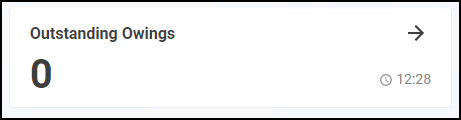
From the Pharmacy Manager Intelligent Dashboard select the Outstanding Owings tile.
Searching for and Sorting and Filtering Owings
To help manage your workload you can search for medication owed to patients.

Searching for an Owing using a Patient Name
To search for an Owing using the patient name:
-
From the Owings screen, in Patient enter a name.
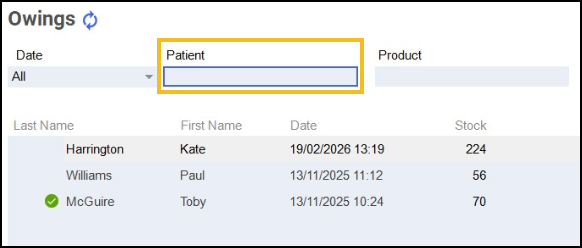
You can search for a patient using the following criteria:
-
Surname only, for example Turner.
-
Partial First Name and Surname with a space, for example Pa Turner.
Training Tip - Partial searches must be the first letters of the name, for example Pa for Paul. -
Partial First Name and partial Surname with a space, for example Pa Turn.
-
Partial First Name, partial Middle Name and partial Surname with a space, for example Pa Gr Turn.
-
Initials with space, for example P T or P G T.
-
Full name with spaces, for example Paul Graham Turner.
-
-
Press Enter on your keyboard to search the Owings list. The results update automatically.
Searching for an Owing using a Product Name
To search for an Owing using the product name:
-
From the Owings screen, in Product enter a name.
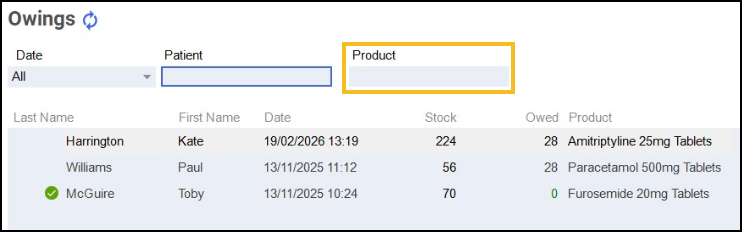
You can search for a product using the following criteria:
-
PARA - Displays all items beginning with PARA.
-
PARA 500 - Displays all items beginning with PARA with a strength of 500.
-
PARA 500 TAB - Displays all items beginning with PARA with a strength of 500 in tablet form.
-
-
Press Enter on your keyboard to search the Owings list. The results update automatically.
Sorting Owings
To manually sort the Owings, select the column header to sort in ascending or descending order. For example, select Owed to sort the items by the amount owed.
Filtering by Date
To filter Owings by date:
-
From the Owings screen, select Date.
-
Choose one of the following options:
-
All - Displays all owings.
-
Last 3 days - Displays owings from the past 3 days.
-
Last 7 days - Displays owings from the past 7 days.
-
Date Range - Select a custom date range.
-