Generic Product Usage
The Generic Product Usage screen helps you to quickly find specific products and view their usage across different stores and time periods. You can search for products using their generic name, and the system will automatically identify relevant products based on your input. Results include the target generic medication as well as associated branded products, ensuring comprehensive visibility.
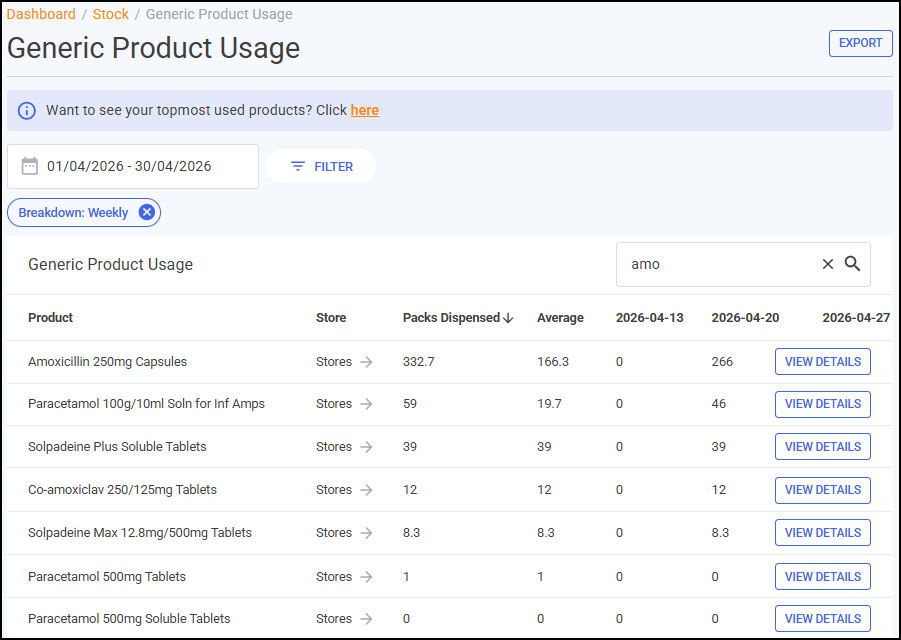
Filtering the Generic Product Usage Screen
You can filter the Generic Product Usage screen using the following methods:
-
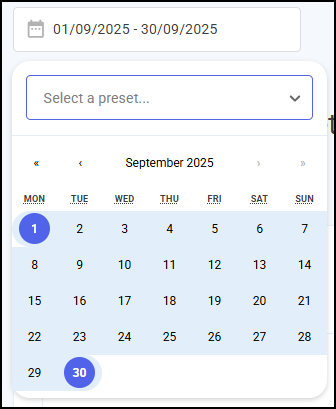
Time Frame - To filter the data by date, you can either:
-
Enter the time frame manually using the calendar, or
-
Select a preset time-frame from the available list.
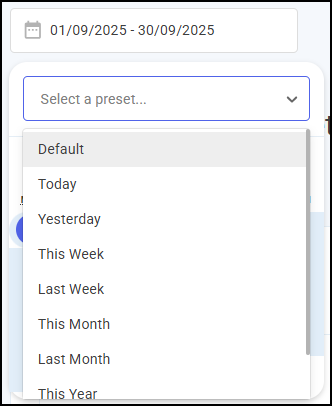
Note - The date is set to the previous calendar month by default. -
-
Search by generic - To search for products containing a generic medicine, enter the generic name in Search by generic...
 . You can search for a generic name by combining medicine name, strength, and form to refine your results, for example:
-
'Para' - To display all items beginning with Para.
-
'Para100' - To display all items beginning with Para with a strength of 100.
-
'Para 100 T' - To display all items beginning with Para with a strength of 100 in tablet form.
-
-
Sort Data - Select either the Product or Packs Dispensed column to sort data by the chosen header, for example, select Product to sort products in alphabetical order.
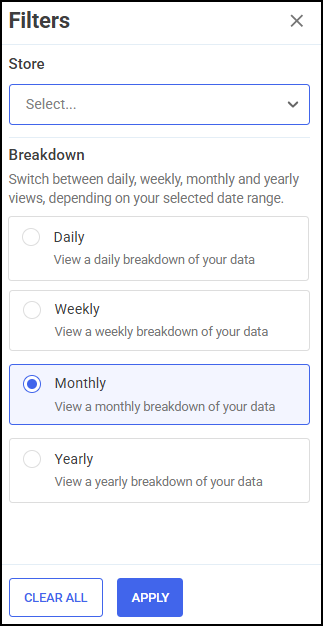
To display more filters, click FILTER  and the Filters screen displays on the right hand side of the screen,
-
Filter by store - To filter the Generic Product Usage screen by store, select the required store(s).
To view data for multiple stores, select the individual stores required and the stores display at the top of the list.
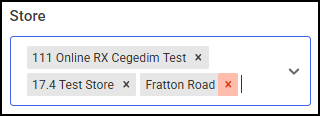 Training Tip - Select
 to remove the store from the filter.
 -
Breakdown - Switch between daily, weekly, monthly and yearly views, based on your selected date range to see a detailed overview of the top-dispensed products.
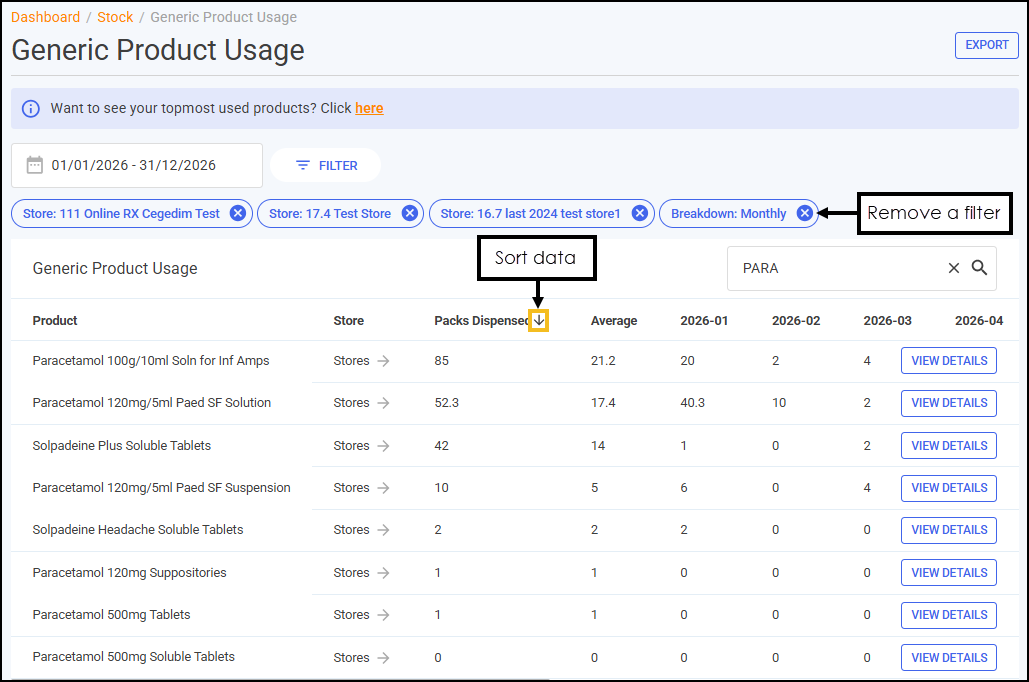 Note - An Average column automatically displays after Packs Dispensed when using time-based filters, showing the average packs dispensed per period for quick trend comparison.
Store Breakdown
Click the Stores  arrow to view product usage for all stores, or for the selected stores, if you've applied a filter to the Generic Product Usage table.
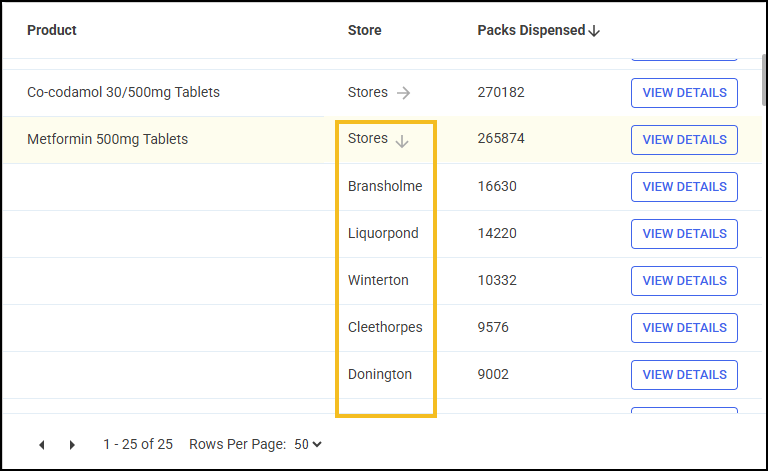
 arrow again to collapse the store breakdown.
 View Details
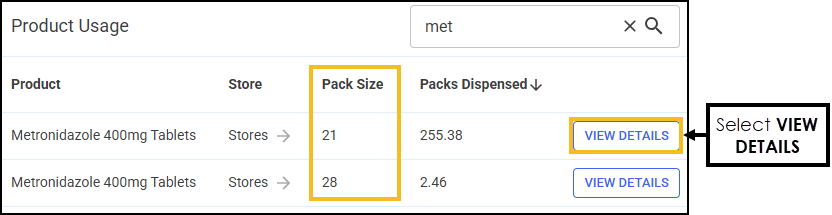
To view more information about the products dispensed, including the pack sizes and manufacturers:
-
Next to a product name, click VIEW DETAILS
 .
.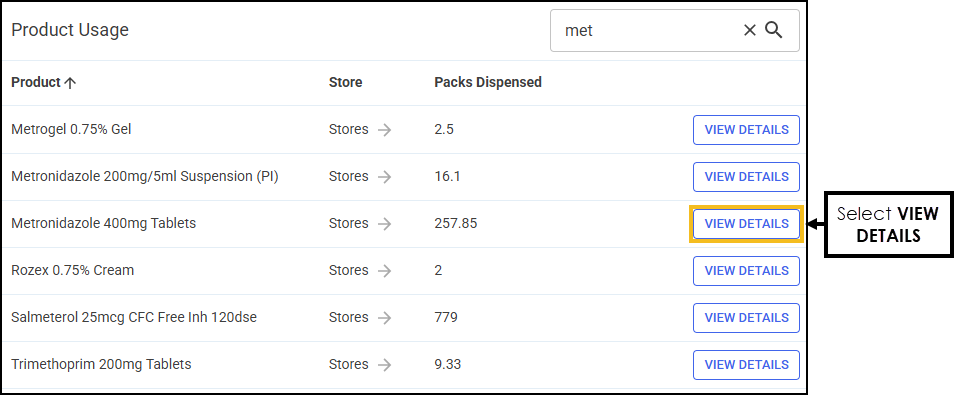
The pack sizes for the selected product display.
-
Next to a product pack size, click VIEW DETAILS
to display the manufacturer details.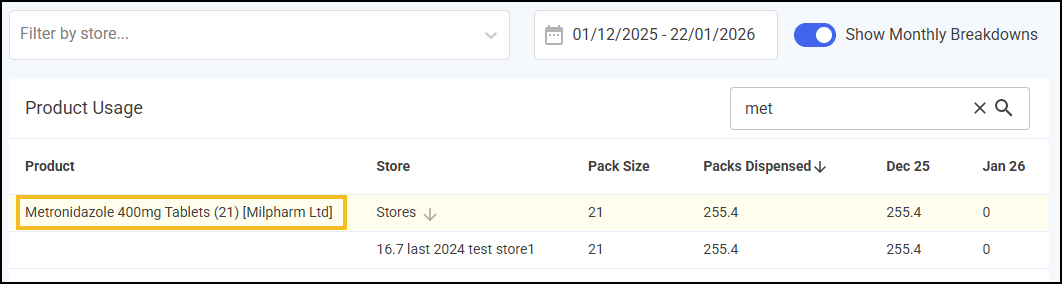 Training Tip - Click the Stores arrow to drill-down to store details, or Show Monthly Breakdowns to view a monthly breakdown of the dispensed product.
Exporting Data
To export product data to a CSV (spreadsheet) file:
-
From the Generic Product Usage screen, select EXPORT
 .
. -
The Export screen displays.
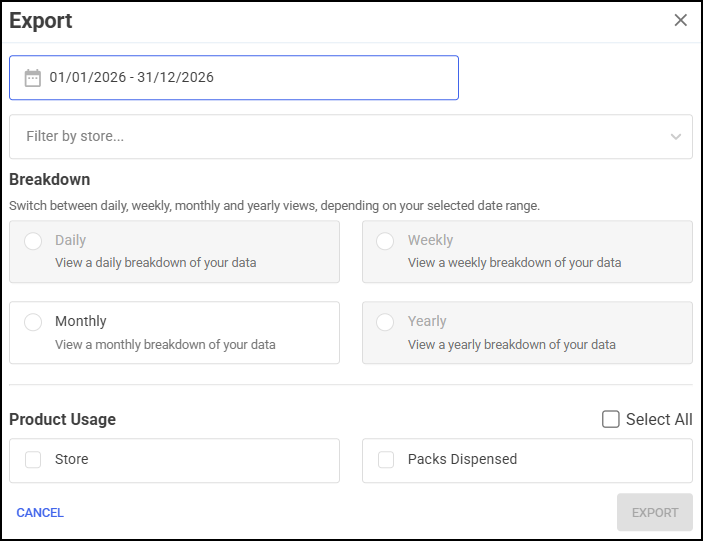
Select from the following:
-
Time Frame - Enter the time frame manually using the calendar.
-
Filter by store - To export the Top Product Usage data by store, simply select the required store(s) from Filter by store.

To view data for multiple stores, select the individual stores required and the stores display at the top of the list.
Training Tip - Select to remove the store from the filter. -
Product Usage - Choose the data that you want to include in the export file.
Training Tip - Tick Select All to include all data on the export file.
-
-
Select EXPORT
 to export the CSV (spreadsheet) file to your local Downloads folder. Training Tip - To view the Downloads folder, open Windows File Explorer, locate and open Downloads. A list of your recently downloaded files display.
 in the top right corner and follow the on-screen prompts.