Completing an Emergency Contraception Service
The Contraception Service screen displays once you have started a new service and have selected a patient.
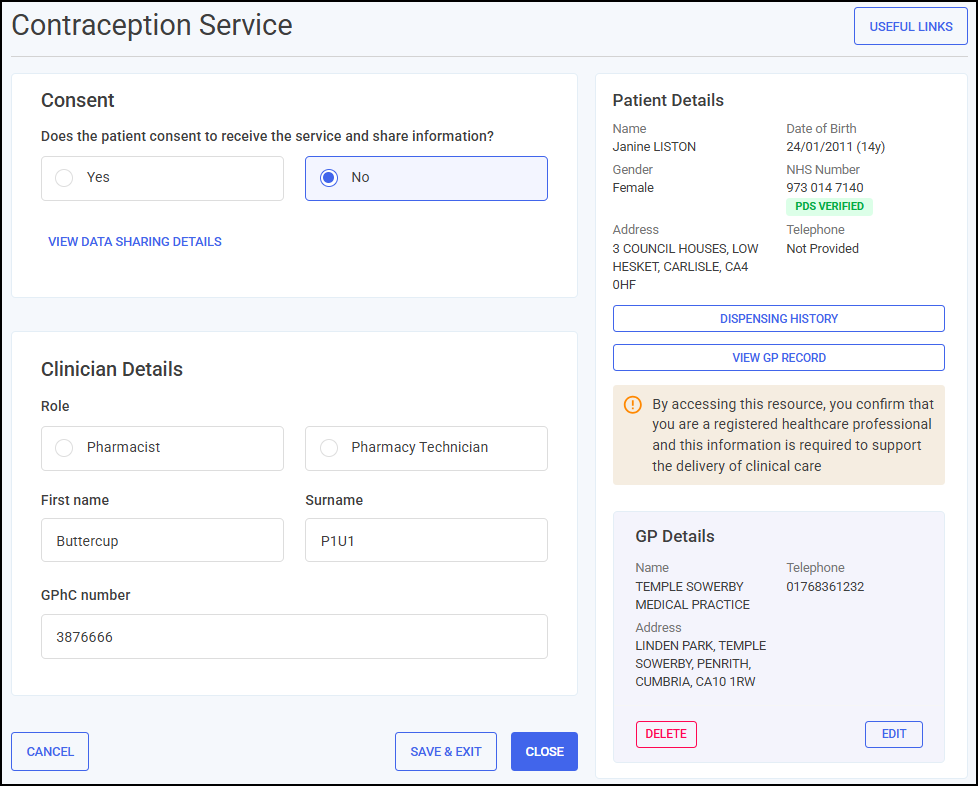
The Contraception Service screen includes the following sections, complete as appropriate:
 Consent
You must record the patient consents to receive the service and share data before recording any other data. To record consent:
-
Select VIEW DATA SHARING DETAILS
 to display the data sharing details.
-
Select Close
 to exit the data sharing details and return to the Consent section.
 -
In the Consent section, select either:
-
Yes - To record that the patient consents to data sharing, and continue to the Consultation Details section, or
-
No - To record that the patient does not consent to data sharing, and then select CLOSE
 to close the Contraception Service screen. This episode saves to the Completed Episodes tab.
-
Consultation Details
Complete the details of this consultation as appropriate.

-
Date - Select Calendar
 to open a calendar and select a date, or select NOW
  to add the current date and time.
 -
Time - Select Show time picker
 to enter the time of consultation, or select NOW to add the current date and time.
 -
Method of consultation - Select a method of consultation from the available list:
-
Face to face communication
-
Telephone
-
Telemedicine (Video Call)
-
-
Method of entry to service - Select a method of entry to the service from the available list:
-
Patient identified in the pharmacy
-
Signposted from GP practice - Enter the Date of referral in the section provided.
-
Signposted from sexual health clinic (or equivalent) - Enter the Date of referral in the section provided.
-
Onward referral from another pharmacy - Enter the Date of referral in the section provided.

-
Signposted from NHS 111 - Enter the Date of referral in the section provided.
-
Self-referral - Enter the Date of referral in the section provided.
-
-
Was a chaperone offered to the patient? - Select if a chaperone was offered to the patient and complete the chaperone details where appropriate.

Safeguarding
-
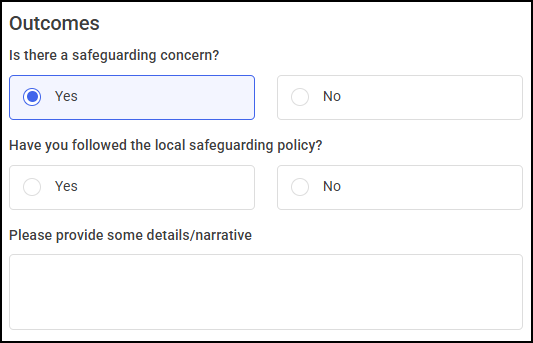
Is there a safeguarding concern? - If if you have identified a potential safeguarding issue during the consultation, select Yes and complete the following details.
-
Have you followed the local safeguarding policy? - Select either Yes or No and then enter details in the Please provide some details/narrative section.
If the patient is under a certain age, you will be asked to complete additional safeguarding evaluations:
Safeguarding Patient's under the age of 18 years
If the patient is under 18, you are prompted to complete a Child Sexual Exploitation (CSE) risk evaluation.
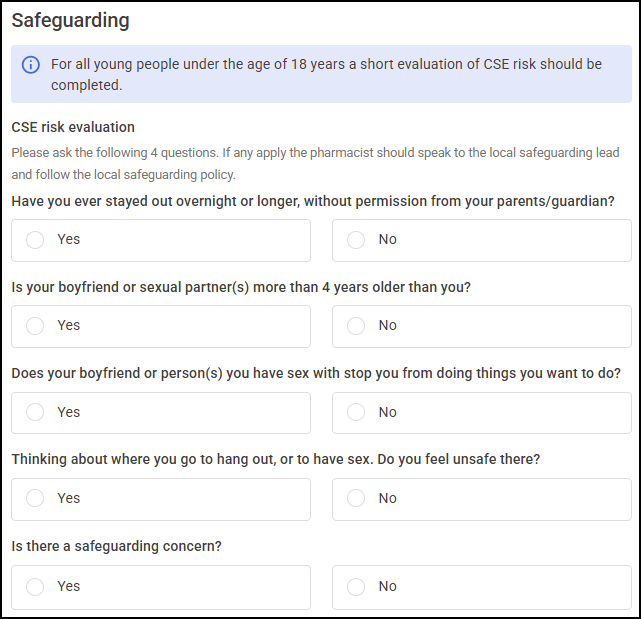
Ask the following questions and if any of them apply, the pharmacist should speak to the local safeguarding lead and follow the local safeguarding policy:
-
Have you ever stayed out overnight or longer, without permission from your parents/guardian? - Select either:
-
Yes
-
No
-
-
Is your boyfriend or sexual partner(s) more than 4 years older than you? - Select either:
-
Yes
-
No
-
-
Does your boyfriend or person(s) you have sex with stop you from doing things you want to do? - Select either:
-
Yes
-
No
-
-
Thinking about where you go to hang out, or to have sex. Do you feel unsafe there? - Select either:
-
Yes
-
No
-
Safeguarding Patient's under the age of 16 years
If the patient is under 16, you are prompted to complete a Fraser guidelines assessment, in addition to the Child Sexual Exploitation (CSE) risk evaluation.
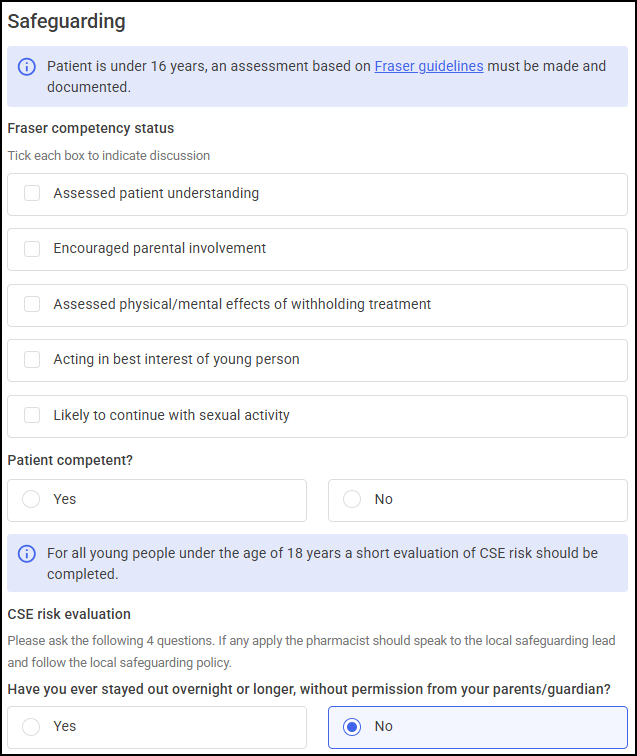
Tick each of the following to indicate a discussion has taken place:
-
Assessed patient understanding
-
Encouraged parental involvement
-
Assessed physical/mental effects of withholding treatment
-
Acting in best interest of young person
-
Likely to continue with sexual activity
-
Patient competent? - Select either:
-
Yes
-
No
-
Service Type
The Contraception Service enables pharmacists to initiate a new supply of Oral Contraception (OC), provide ongoing supplies of OC, or provide Emergency Oral Contraception to their patients.

Complete as appropriate:
-
Select Oral emergency contraception. The Service reason section displays.

-
Select a service reason:
-
Initial Supply - A single dose of oral Emergency Contraception (EC) should be made for all oral EC consultations. This should be 1 tablet unless the person meets criteria outlined in the PGD that allow for an alternative regimen.
-
Repeat Dose - Select if a person is sick within 3 hours of the initial dose of oral EC being taken, a further supply of oral EC can be made by the pharmacist or pharmacy technician. This should be recorded as a separate consultation (and will be paid for accordingly)
-
-
Is the patient currently using any form of contraception? - Select either:
-
Yes - Select one or more Current method(s) of contraception used by patient from the available list.
 Training Tip - If required, select Delete
 to remove a method of contraception.
 -
No
-
Clinical Check
Select the appropriate response to each question and add any additional information when prompted.
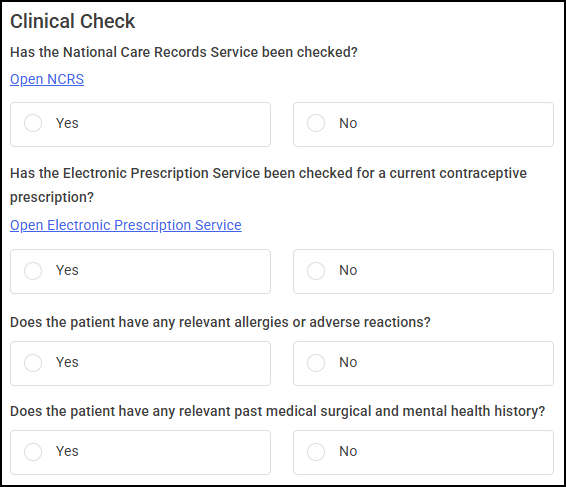
Has the National Care Records Service been checked? - Select either:
-
Yes, or
-
No
Has the Electronic Prescription Service been checked for a current contraceptive prescription? - Select either:
-
Yes, or
-
No
Does the patient have any relevant allergies or adverse reactions? - Select either:
-
Yes - If you select Yes, you are prompted to describe relevant allergies or adverse reactions in the free text section, or
Note - This data will not currently flow to GP practices in the post event message. Please consider notifying the GP manually if you feel it is necessary.Training Tip - This is a free text entry section allowing up to 500 characters. -
No
Does the patient have any relevant past medical surgical and mental health history? - Select either:
-
Yes - If you select Yes, you are prompted to describe relevant past medical, surgical and mental health history in the free text section, or
Note - This will be sent to the patient's GP practice if the patient has consented to information sharing.Training Tip - This is a free text entry section allowing up to 500 characters. -
No
Patient Weight and Height

Complete as follows:
-
Weight (Kg) - Enter a Weight value in kilograms.
-
Height (cm) - Enter a Height value in centimetres.
Training Tip - The BMI reading is calculated when entering a Weight and Height value. -
Source of reading - Select either:
-
Pharmacy, or
-
Patient - You must enter the Date of BMI reading in the section provided.

-
Supply Details
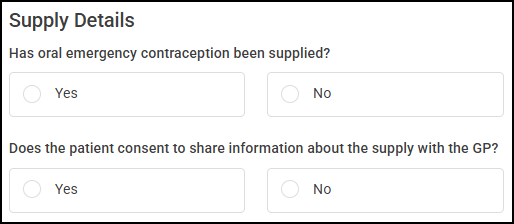
Has oral emergency contraception been supplied? - Select either:
Yes
The Contraception product supplied screen displays.
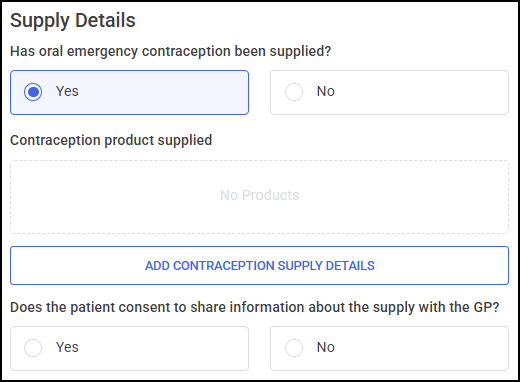
To add a contraception product to the Contraception Service:
-
Select ADD CONTRACEPTION SUPPLY DETAILS
 . The Add Contraception Product screen displays.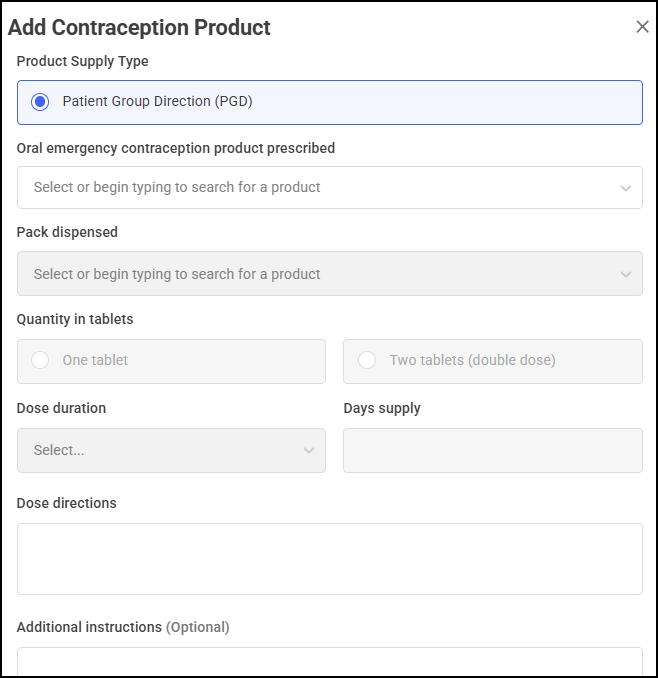
Complete as appropriate:
-
Product Supply Type - Patient Group Direction (PGD) is selected by default.
-
Oral emergency contraception product prescribed - Enter the name of the product, or select a product from the available list.
Important - When prescribing specific medications, a warning message displays if the patient's recorded BMI exceeds 26 or their weight is over 70kg, prompting consideration of a double dose (two tablets) in accordance with the PGD guidelines.Training Tip - The product list automatically updates as you type. -
Pack dispensed - Enter the name of the product, or select a product from the available list.
Note - The Pack dispensed section updates automatically where there is only one product available.Training Tip - The product list automatically updates as you type. -
Quantity in tablets - Enter the number of tablets supplied, select either:
-
One tablet - The dose directions auto-populate "Take one tablet as soon as possible".
-
Two tablets (double dose) - The dose directions auto-populate "Take two tablets as a single dose as soon as possible".
Important - If the patient’s BMI is 26 kg/m² or higher, or their weight is over 70 kg, and they are suitable for emergency hormonal contraception (EHC), consider giving a double dose (two tablets) as recommended in the PGD. This helps ensure effective protection. -
-
Dose duration - The dose duration auto populates to 1 day.
-
Days supply - The days supply auto populates to 1.
-
Dose directions - The dose directions auto-populate based on the selected product and number of tablets selected.
Training Tip - You can still edit the text for patient-specific needs, such as adjusting timing or adding reminders. If you switch medications, the field updates instantly to show the new product’s default directions even if previously modified. -
Additional Instructions (Optional) - Enter any additional instructions if required.
-
-
Select SUBMIT
 to add the product to Contraception product supplied.
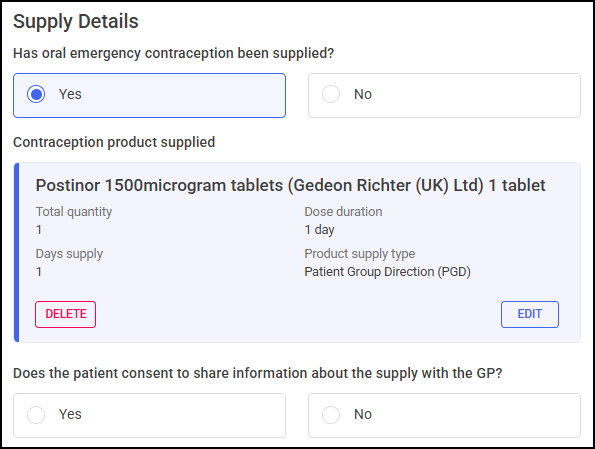 Training Tip - Select DELETE
 to delete a product, or EDIT
  to edit the product.
 -
Select Yes or No to confirm if the patient consents to share information about the supply with their GP. Selecting Yes displays the patient's registered GP details, if required, select EDIT
 to edit the GP details.
 Note - When completing a Contraception service an electronic GP Notification is automatically sent to the patient's registered GP practice using these details. If the GP Notification fails to send, it must be sent securely to the patient's registered GP practice, for example, by NHSMail.
No
The No supply outcomes screen displays.
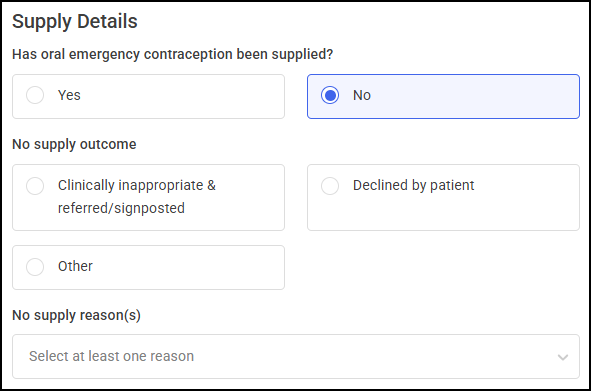
Complete as appropriate:
-
No supply outcome - Select one of the following outcomes:
- Clinically inappropriate & referred/signposted
- Declined by patient
- Other
-
No supply reason(s) - Select one or more reasons from the available list.
Training Tip - Select Delete to remove a reason.
Outcomes

Complete as appropriate:
-
Has LARC or other effective contraception been discussed? - Select either:
-
Yes
-
No
-
-
Is signposting/escalation required? - If the patient requires signposting or escalating to another service, select Yes and then select which action is required, either:
-
Select Signposting to display the Signposted to options.

-
Select an option from the available list:
-
GP Practice
-
Out of hours GP/IUC
-
Sexual Health Clinic
-
Alternative Community Pharmacy
-
Other - You are prompted to enter more information.
 Training Tip - This is a free text entry section allowing up to 250 characters.
-
-
If required, enter the service's ODS code.

-
If required, enter any additional information or advice given to the patient in Information and advice given (Optional).
-
Enter a clinical summary of the consultation with your patient in Clinical Summary.
Note - This is sent to the patient's GP practice on completion if the patient has consented to information sharing. -
Select Escalation to display the Escalated to options.

-
Select an option from the available list:
-
GP Practice
-
Out of hours GP/IUC
-
A&E
-
999
-
Urgent Treatment Centre
-
Other - You are prompted to enter more information.
Training Tip - This is a free text entry section allowing up to 250 characters.
-
-
If required, enter the service's ODS code.
Signposting
Escalation
Note - The option to escalate is only available where contraception has not been supplied. -
-
Information and advice given (Optional) - Please provide a summary of any information or advice you have provided your patient. This will be sent to the patient's GP practice if the patient has consented to information sharing.
-
Clinical Summary - Please provide a summary of the consultation with your patient and any details of history taken. This will be sent to the patient's GP practice if the patient has consented to information sharing.
Clinician Details
This section automatically populates with the logged in user's details.

Select the clinician's role from the available list and update the details manually if required:
-
Pharmacist
-
Pharmacist Technician
Once all sections are complete:
-
Select COMPLETE
 to complete the Contraception Service. Training Tip - If you are not ready to complete the episode and want to return to it later, select SAVE & EXIT
 .
. -
The Complete Confirmation screen displays. Select COMPLETE
to complete the episode. Training Tip - Select CANCEL
 to return to the previous screen.
 -
The Consultation Complete screen displays.
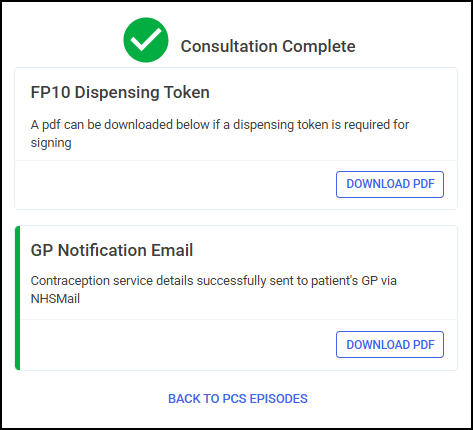 Important - When completing a Contraception service, if a patient is PDS (Personal Demographics Service) verified
 an electronic notification is automatically sent to their registered GP practice to update their record once accepted. If the GP practice rejects the message for any reason, Pharmacy Services now automatically attempts to resend the message via NHSMail. If the GP Notification fails to send, it must be sent securely to the patient's registered GP practice. If the patient's details have not been PDS verified, service details are sent to their registered GP by NHSMail.
 -
If required, select DOWNLOAD PDF
 to download the following:
-
A PDF version of the GP Notification.
-
A PDF version of the FP10 Dispensing Token (if required for signing).
-
-
Select DOWNLOAD PDF
 to download the GP Notification, or BACK TO PCS EPISODES
  . The episode completes and displays on the Completed Episodes screen.
Useful Links
Throughout the Contraception Service consultation, you can select USEFUL LINKS  from the top right of the screen to access the following useful links.

General Links
Contraception Consultation Tools
 in the top right corner and follow the on-screen prompts.